
Overview
ChatGPT integration in Power Automate enables AI-powered automation workflows that generate content, analyse data, and provide intelligent responses. Using HTTP actions with OpenAI API endpoints, you can send prompts to ChatGPT, receive AI-generated text, and incorporate natural language processing capabilities into your business processes without custom code.
Prerequisites
- Power Automate cloud flow experience
- Understanding of HTTP actions and API calls
- OpenAI API account and API key
- Familiarity with JSON parsing
Why Use ChatGPT in Power Automate?
Integrating AI into your workflows can dramatically improve efficiency, reduce manual work, and automate more experience. Here are of the many powerful benefits of using ChatGPT in Power Automate to enhance workflows, analyse data, and generate text automatically:
- Automate email responses using AI-generated text tailored to customer enquiries
- Summarise long documents or meeting notes automatically
- Generate product descriptions, blog posts, or marketing content on demand
- Analyse sentiment in customer feedback or support tickets
- Create intelligent chatbot responses for Teams or other messaging platforms
- Translate content between languages as part of automated workflows
What makes ChatGPT valuable for automation?
- Natural language understanding – Interprets user input and context to generate relevant responses
- Content generation – Creates original text based on prompts and instructions
- Data analysis – Extracts insights, summarises information, and identifies patterns
- Flexibility – Handles diverse tasks from creative writing to technical documentation
ChatGPT integration works through OpenAI's API, which accepts text prompts via HTTP requests and returns AI-generated responses in JSON format. Power Automate's HTTP action sends your prompt to the API endpoint, receives the generated text, and makes it available for use in subsequent flow actions—enabling AI capabilities without custom code or complex integrations.
Getting Started with OpenAI API
1. Create an account with OpenAI to access the ChatGPT API
Visit platform.openai.com and sign up for an account. You'll need to add a payment method as the API uses pay-per-use pricing.
- Go to platform.openai.com
- Create account or sign in
- Navigate to API keys section
- Add payment method for API usage
2. Generate an API key and store it securely
Once logged in, generate an API key from your OpenAI dashboard. Keep this key secure—you'll use it to authenticate API requests from Power Automate.
OpenAI generates a unique API key for your account.
The key is only shown once—save it securely. You cannot retrieve it later.
Never hardcode API keys in flows. Use secure storage and reference them dynamically.
3. Create a Power Automate flow triggered by your desired event
Set up a trigger based on your use case. Common triggers for ChatGPT integration:
| Trigger | Use Case | Example |
|---|---|---|
| Manually trigger a flow | Testing and development | Test ChatGPT responses interactively |
| When a new email arrives | Automated email analysis | Summarise email content or draft replies |
| When a row is added | Data enrichment | Generate descriptions for new products |
| PowerApps trigger | User-initiated AI requests | Canvas app with AI assistant feature |
| Recurrence | Scheduled content generation | Daily social media post creation |
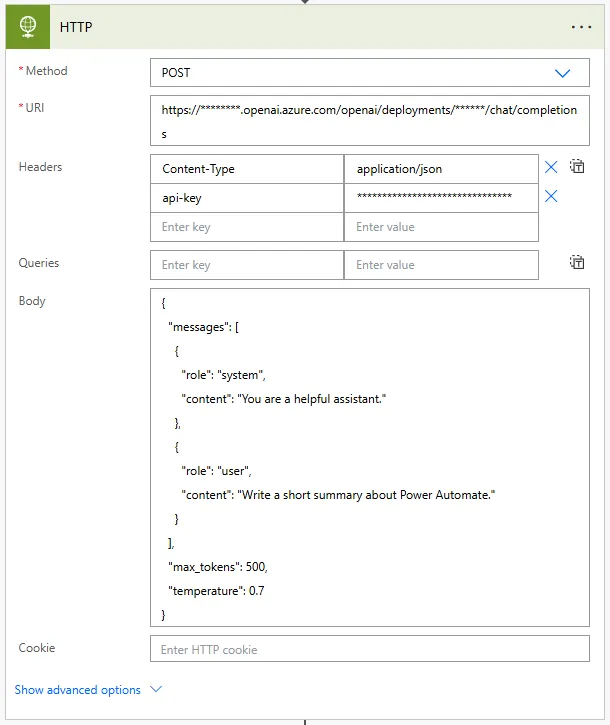
4. Add an HTTP action to call the ChatGPT API endpoint
Configure the HTTP action with OpenAI's chat completions endpoint for ChatGPT models.
5. Configure the HTTP Request with the following settings:
Method: POST
URI: https://api.openai.com/v1/chat/completions
Headers:
{
"Content-Type": "application/json",
"Authorization": "Bearer YOUR_OPENAI_API_KEY"
}
Body:
{
"model": "gpt-4",
"messages": [
{
"role": "user",
"content": "Write a short summary about Power Automate."
}
]
}
This will send something like below:
{
"model": "gpt-4",
"messages": [
{
"role": "system",
"content": "You are a helpful assistant."
},
{
"role": "user",
"content": "Write a short summary about Power Automate."
}
],
"max_tokens": 500
}
Never hardcode your OpenAI API key directly in Power Automate flows. Anyone with access to the flow can view the key. Instead, store the key in Azure Key Vault and retrieve it dynamically using the Azure Key Vault connector, or use environment variables in solutions. This prevents unauthorised API usage and protects your OpenAI account from abuse.
Breaking Down the API Request Structure
Headers:
{
"Content-Type": "application/json",
"Authorization": "Bearer sk-proj-YOUR_API_KEY_HERE"
}
Header fields explained:
| Header | Purpose | Value |
|---|---|---|
| Content-Type | Specifies request format | application/json (required for API) |
| Authorization | Authenticates API request | Bearer [your-api-key] |
Body:
{
"model": "gpt-4",
"messages": [
{
"role": "system",
"content": "You are a helpful assistant."
},
{
"role": "user",
"content": "Explain Power Automate in simple terms."
}
],
"max_tokens": 500,
"temperature": 0.7
}
Request body parameters:
| Parameter | Purpose | Example Values |
|---|---|---|
| model | Which ChatGPT model to use | gpt-4, gpt-4-turbo, gpt-3.5-turbo |
| messages | Conversation history and prompts | Array of role/content objects |
| max_tokens | Maximum length of response | 500 (roughly 375 words) |
| temperature | Creativity level (0-2) | 0.7 (balanced), 0 (focused), 1.5 (creative) |
Message roles explained:
- system – Sets the assistant's behaviour and personality (e.g., "You are a helpful assistant" or "You are a technical expert")
- user – The actual prompt or question from the user
- assistant – Previous AI responses (for conversation context in multi-turn conversations)
Example with conversation context:
{
"model": "gpt-4",
"messages": [
{"role": "system", "content": "You are a business analyst."},
{"role": "user", "content": "What is Power Automate?"},
{"role": "assistant", "content": "Power Automate is Microsoft's workflow automation tool..."},
{"role": "user", "content": "How does it integrate with SharePoint?"}
]
}
Including previous messages maintains conversation context, allowing ChatGPT to reference earlier parts of the discussion.
Use the system message to define specific output formats or constraints. For example: "You are a technical writer. Always respond with bullet points and keep answers under 200 words." This ensures ChatGPT's responses match your flow's requirements without additional parsing or formatting logic.
Viewing and Testing the API Response
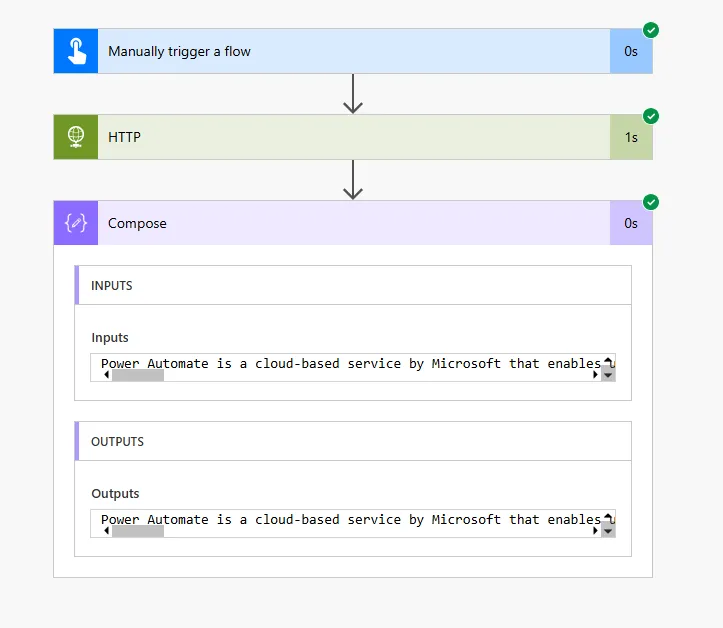
Also this way to make API call you can see what the response will get. Once the flow completes, you'll see the response body. Let your mind expand (not a boolean) sure how AI there is no straight answer.
That being said you can AI based knowledge for the future!
Understanding the response structure:
The OpenAI API returns a JSON response containing the generated text and metadata:
{
"id": "chatcmpl-abc123",
"object": "chat.completion",
"created": 1699999999,
"model": "gpt-4",
"choices": [
{
"index": 0,
"message": {
"role": "assistant",
"content": "Power Automate is Microsoft's cloud-based service that helps users create automated workflows between applications and services. It enables businesses to automate repetitive tasks, synchronise files, collect data, and send notifications without writing code."
},
"finish_reason": "stop"
}
],
"usage": {
"prompt_tokens": 25,
"completion_tokens": 47,
"total_tokens": 72
}
}
Response properties explained:
| Property | Description | Use Case |
|---|---|---|
| choices[0].message.content | The AI-generated text response | Extract this for use in emails, messages, documents |
| usage.total_tokens | API usage for billing | Monitor costs and track consumption |
| finish_reason | Why generation stopped | "stop" = complete, "length" = hit max_tokens limit |
| model | Which model processed request | Confirm correct model used |
Testing the HTTP action:
Execute the flow to send the request to ChatGPT API.
View inputs sent and outputs received from OpenAI.
200 = Success. 401 = Invalid API key. 429 = Rate limit exceeded.
Copy the JSON to use in generating Parse JSON schema.
OpenAI API charges per token (roughly per word). GPT-4 is significantly more expensive than GPT-3.5-turbo. Monitor your usage dashboard to avoid unexpected costs. Set max_tokens limits to control response length and cost per request. For high-volume automations, consider caching responses or using GPT-3.5-turbo for less critical tasks.
Parsing and Using ChatGPT Responses
To the HTTP action result and Parse those data to consume this action correctly, ensure this is retrieved properly:
{
"type": "object",
"properties": {
"id": {"type": "string"},
"object": {"type": "string"},
"created": {"type": "integer"},
"model": {"type": "string"},
"choices": {
"type": "array",
"items": {
"type": "object",
"properties": {
"index": {"type": "integer"},
"message": {
"type": "object",
"properties": {
"role": {"type": "string"},
"content": {"type": "string"}
}
},
"finish_reason": {"type": "string"}
}
}
},
"usage": {
"type": "object",
"properties": {
"prompt_tokens": {"type": "integer"},
"completion_tokens": {"type": "integer"},
"total_tokens": {"type": "integer"}
}
}
}
}
On this one as an ask the JSON answer any any data from there (using this scheme message you can tell here with Compose). The composition of the (maybe it's 0.01 etc) and the response message.
Adding Parse JSON action:
Search for "Parse JSON" in Data Operations.
Use dynamic content to reference the HTTP response body.
Paste the actual HTTP response from your test run.
Extracting the generated text:
// Expression to get ChatGPT's response text
body('Parse_JSON')?['choices']?[0]?['message']?['content']
// Available in dynamic content after Parse JSON as:
choices content
After the parse, each the record get the simple message since the first element of the choices array is index 0 hence you can add the below to your email content:
body('Parse_JSON')?['choices']?[0]?['message']?['content']
Using the response in flow actions:
// Send email with ChatGPT response
Action: Send an email (V2)
To: user@company.com
Subject: AI-Generated Summary
Body: @{body('Parse_JSON')?['choices']?[0]?['message']?['content']}
// Post to Teams
Action: Post message in a chat or channel
Message:
🤖 AI Assistant Response:
@{body('Parse_JSON')?['choices']?[0]?['message']?['content']}
// Store in SharePoint
Action: Create item
List: AI Responses
Title: Response - @{utcNow('yyyy-MM-dd HH:mm')}
Content: @{body('Parse_JSON')?['choices']?[0]?['message']?['content']}
Tokens Used: @{body('Parse_JSON')?['usage']?['total_tokens']}
Store the total_tokens value in a SharePoint list or Dataverse table for usage tracking. Create a daily scheduled flow that sums tokens used to monitor costs. Set up alerts when daily token usage exceeds thresholds. This prevents unexpected API bills and helps identify flows with inefficient prompts that consume excessive tokens.
Practical Examples of ChatGPT Integration
I'm Stopping the AI response! Remember:
Example 1: Automated email response generator
Trigger: When a new email arrives (V3)
Condition: Subject contains "Product Question"
HTTP - ChatGPT:
Prompt: "Write a helpful response to this customer question: @{triggerBody()?['body']}"
Parse JSON: [response structure]
Send an email (V2):
To: @{triggerBody()?['from']}
Subject: Re: @{triggerBody()?['subject']}
Body: @{body('Parse_JSON')?['choices']?[0]?['message']?['content']}
Example 2: Meeting notes summariser
Trigger: When a file is created (SharePoint)
Condition: Folder equals "/Meeting Notes"
Get file content: [meeting notes document]
HTTP - ChatGPT:
Prompt: "Summarise these meeting notes in 3 bullet points: @{body('Get_file_content')}"
Parse JSON: [response structure]
Create item (SharePoint):
List: Meeting Summaries
Title: @{triggerOutputs()?['body/{Name}']}
Summary: @{body('Parse_JSON')?['choices']?[0]?['message']?['content']}
Example 3: Product description generator
Trigger: When a row is added (Dataverse - Products table)
HTTP - ChatGPT:
Prompt: "Write a compelling 50-word product description for: @{triggerOutputs()?['body/cr_productname']} - @{triggerOutputs()?['body/cr_category']}"
Parse JSON: [response structure]
Update a row (Dataverse):
Table: Products
Row ID: @{triggerOutputs()?['body/cr_productid']}
Description: @{body('Parse_JSON')?['choices']?[0]?['message']?['content']}
Example 4: Sentiment analysis for support tickets
Trigger: When a row is added (Support Tickets)
HTTP - ChatGPT:
Prompt: "Analyse the sentiment of this support ticket and respond with only: Positive, Neutral, or Negative. Ticket: @{triggerOutputs()?['body/description']}"
Parse JSON: [response structure]
Compose: Sentiment
@{body('Parse_JSON')?['choices']?[0]?['message']?['content']}
Condition: Sentiment contains "Negative"
If yes: Create high-priority task for manager review
If no: Assign to standard support queue
Example 5: Dynamic prompt from user input
Trigger: PowerApps (Canvas app with AI assistant)
Inputs:
- UserQuestion (text)
- Context (text)
HTTP - ChatGPT:
Prompt: "Context: @{triggerBody()['text_1']}. Question: @{triggerBody()['text']}"
Parse JSON: [response structure]
Respond to PowerApp:
AIResponse: @{body('Parse_JSON')?['choices']?[0]?['message']?['content']}
Always validate ChatGPT responses before using them in critical business processes. AI can generate incorrect information, inappropriate content, or responses that don't match your requirements. Add Condition checks for expected keywords, length limits, or prohibited terms. For customer-facing content, consider requiring human approval before sending AI-generated messages.
Next Steps
You now understand how to integrate ChatGPT into Power Automate workflows using the OpenAI API. This enables AI-powered content generation, analysis, and intelligent automation without custom code development.
Expand your ChatGPT integration capabilities by exploring:
- Function calling – Using ChatGPT's function calling feature to structure responses as JSON for easier parsing
- Conversation memory – Storing previous messages to maintain context across multiple flow runs
- Prompt engineering – Optimising prompts for better, more consistent AI responses
- Error handling – Managing API failures, rate limits, and invalid responses gracefully
- Cost optimisation – Choosing appropriate models, setting token limits, and caching responses
- Multi-turn conversations – Building conversational flows that remember previous interactions
- Content moderation – Using OpenAI's moderation endpoint to filter inappropriate content
- Fine-tuned models – Creating custom ChatGPT models trained on your organisation's data
The OpenAI Chat Completions API documentation provides comprehensive guidance on request parameters, response structures, best practices for prompt design, and advanced features for building sophisticated AI-powered automation workflows in Power Automate.
Need this built for your business?
We design and build production-grade Power Platform solutions for FM, Construction and Manufacturing businesses.
Book a Discovery Call →