
Overview
The workflow() function in Power Automate provides access to metadata about the currently executing flow, including flow name, run ID, environment information, and trigger details. Using this function, you can build dynamic flows that reference their own properties, create comprehensive logging systems, and generate detailed error reports without manually entering flow-specific information that changes across environments.
Prerequisites
- Power Automate cloud flow experience
- Understanding of expressions and dynamic content
- Familiarity with Compose actions
- Basic knowledge of JSON structure
Why Extract Workflow Metadata?
When working with Power Automate, especially in environments where flows are triggered frequently or monitored closely, it's incredibly useful to generate a clear track for a specific flow run or to alert users to quickly access the exact flow run. This allows users to investigate the flow run themselves using the metadata, letting teams drill down to root issues quickly without needing to ask users for details.
Common use cases for workflow metadata:
- Error notifications that include flow name and run ID for easy troubleshooting
- Audit logging that tracks which flows executed and when
- Success/failure reporting with links directly to flow run history
- Dynamic email subjects that include flow name for easy filtering
- Monitoring dashboards that aggregate flow execution data
- Cross-environment flows that adapt based on which environment they're running in
Benefits of using workflow() function:
- No hardcoding – Flow name and ID retrieved automatically, not manually entered
- Environment-aware – Same flow works across dev/test/prod without modification
- Troubleshooting – Run IDs provide direct links to specific executions in flow history
- Maintainability – Rename flows without updating logging or notification actions
The workflow() function returns metadata about the current flow execution as a JSON object. This includes properties like the flow's display name, unique run identifier, environment URLs, and trigger information. Unlike hardcoded values that require manual updates, workflow() dynamically retrieves current execution context, making flows self-documenting and environment-independent.
Understanding the workflow() Expression
Power Automate provides a built-in function called workflow() that returns metadata about the current flow run. You can use this in a Compose action or directly within expressions.
Here's an example that our before:
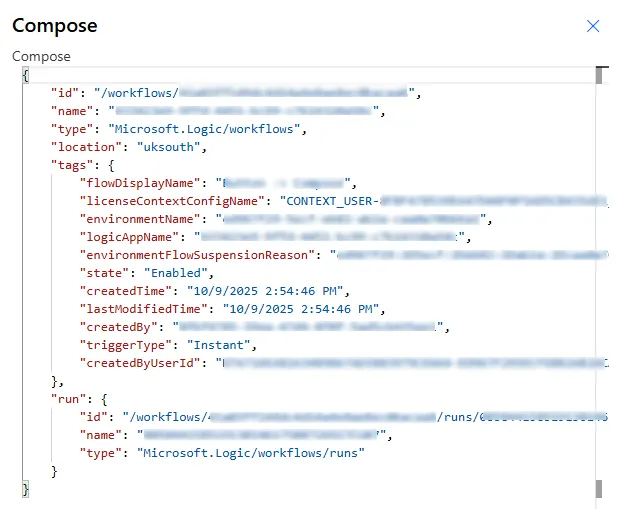
Basic workflow() usage:
// Get entire workflow metadata object
workflow()
// Returns JSON with all flow properties
Key workflow() properties:
| Property | Expression | Returns |
|---|---|---|
| Flow name | workflow()?['tags']?['flowDisplayName'] | Display name of the flow |
| Run ID | workflow()?['run']?['name'] | Unique identifier for this specific run |
| Environment name | workflow()?['tags']?['environmentName'] | Name of the environment (dev/test/prod) |
| Workflow ID | workflow()?['name'] | Unique ID of the flow itself |
Now we can have the JSON of the following a scenario we can use check back from it e.g.
workflow()?['tags']?['flowDisplayName']
Example workflow() output structure:
{
"name": "a1b2c3d4-5678-90ab-cdef-1234567890ab",
"type": "Microsoft.Logic/workflows/runs",
"tags": {
"flowDisplayName": "Daily Report Generator",
"environmentName": "Production",
"xrmOrganizationUniqueName": "org123abc"
},
"run": {
"name": "08586031234567890123456789012345",
"type": "Microsoft.Logic/workflows/runs"
}
}
Not all workflow() properties are available in all contexts. Some properties only exist for flows in Dataverse environments, others for flows connected to specific services. Always use the ? safe navigation operator (workflow()?['property']) to prevent errors when properties don't exist. Test workflow() output in each environment to confirm which properties are available.
Building Direct Links to Flow Runs
Now that we know we can output details from the flow run we could generate a link from the run we call include back in the return value.
concat(
'https://make.powerautomate.com/environments/',
workflow()?['tags']?['environmentName'],
'/flows/',
workflow()?['name'],
'/runs/',
workflow()?['run']?['name']
)
This will then output:
Breaking down the URL construction:
| URL Component | Source | Example Value |
|---|---|---|
| Base URL | Static | https://make.powerautomate.com/environments/ |
| Environment ID | workflow()?['tags']?['environmentName'] | Default-abc123-def4-5678-90ab-cdef12345678 |
| /flows/ path | Static | /flows/ |
| Flow ID | workflow()?['name'] | a1b2c3d4-5678-90ab-cdef-1234567890ab |
| /runs/ path | Static | /runs/ |
| Run ID | workflow()?['run']?['name'] | 08586031234567890123456789012345 |
Complete URL example:
https://make.powerautomate.com/environments/Default-abc123-def4-5678-90ab-cdef12345678/flows/a1b2c3d4-5678-90ab-cdef-1234567890ab/runs/08586031234567890123456789012345
Using the URL in notifications:
// Email notification with flow run link
Action: Send an email (V2)
Subject: Flow Error - @{workflow()?['tags']?['flowDisplayName']}
Body:
An error occurred in the flow: @{workflow()?['tags']?['flowDisplayName']}
View the run details:
@{concat('https://make.powerautomate.com/environments/',workflow()?['tags']?['environmentName'],'/flows/',workflow()?['name'],'/runs/',workflow()?['run']?['name'])}
Run ID: @{workflow()?['run']?['name']}
Error: @{body('Previous_Action')?['error']?['message']}
Creating clickable HTML links:
// HTML email with clickable link
concat(
'View Flow Run'
)
Store the flow run URL construction as a Compose action at the start of your flow and reference it throughout. This avoids repeating the long concat() expression in multiple places. Name it "Compose - Flow Run URL" so it's easy to find in dynamic content when building error notifications, logging actions, or success confirmations.
Practical Applications of Workflow Metadata
Now that we have covered this successfully output Workflow details we could use this in a number of scenarios, for example show once a flow fails or even gets an error state you could run this "error" (tags in parentheses) from the flow run which should look like something like:
concat(
'[FAILED] ',
workflow()?['tags']?['flowDisplayName'],
' | Run: ',
workflow()?['run']?['name']
)
For this we could use a condition, IF: workflow()?['Tags']?['EnvironmentName'] = 'Production Environment' Then do IT Risk Send Email
Example 1: Error notification with full context
Then we can add an email along with the details from the flow.
// Error handling pattern
Scope: Try
[Main workflow actions]
Scope: Catch (Configure run after: has failed)
Send an email (V2):
To: admin@company.com
Subject: @{concat('[FAILED] ', workflow()?['tags']?['flowDisplayName'], ' | ', workflow()?['run']?['name'])}
Body:
Flow Name: @{workflow()?['tags']?['flowDisplayName']}
Environment: @{workflow()?['tags']?['environmentName']}
Run ID: @{workflow()?['run']?['name']}
View Run Details:
@{concat('https://make.powerautomate.com/environments/',workflow()?['tags']?['environmentName'],'/flows/',workflow()?['name'],'/runs/',workflow()?['run']?['name'])}
Error occurred in action: [Action name]
Example 2: Audit logging to SharePoint
// At end of successful flow run
Create item (SharePoint):
Site: https://company.sharepoint.com/sites/audit
List: Flow Execution Log
Title: @{workflow()?['tags']?['flowDisplayName']}
Run ID: @{workflow()?['run']?['name']}
Environment: @{workflow()?['tags']?['environmentName']}
Run URL: @{concat('https://make.powerautomate.com/environments/',workflow()?['tags']?['environmentName'],'/flows/',workflow()?['name'],'/runs/',workflow()?['run']?['name'])}
Status: Success
Execution Time: @{utcNow()}
Records Processed: @{length(outputs('Apply_to_each')?['body'])}
Example 3: Environment-aware conditional logic
// Different behavior in Production vs Development
Condition:
workflow()?['tags']?['environmentName']
contains
'Production'
If yes:
// Production: Send notifications, log to permanent storage
Send email notification
Create audit record
If no:
// Development: Skip notifications
Compose: "Skipping notifications in non-production"
Example 4: Dynamic Teams notification
Action: Post message in a chat or channel
Message:
✅ Flow Completed Successfully
**Flow:** @{workflow()?['tags']?['flowDisplayName']}
**Environment:** @{workflow()?['tags']?['environmentName']}
**Completed:** @{utcNow('dd/MM/yyyy HH:mm')}
[View Run Details](@{concat('https://make.powerautomate.com/environments/',workflow()?['tags']?['environmentName'],'/flows/',workflow()?['name'],'/runs/',workflow()?['run']?['name'])})
See Power Automate Error Handling for more details on how to use.
Flow run URLs contain environment and flow GUIDs but don't expose sensitive data from the flow execution. However, users who access the URL can view all inputs and outputs from that run if they have permission. Only share run URLs with users who are authorised to see flow execution details. Consider security group membership before sending run links in broad notifications.
Full Implementation Pattern
The final result (With HTML styling)
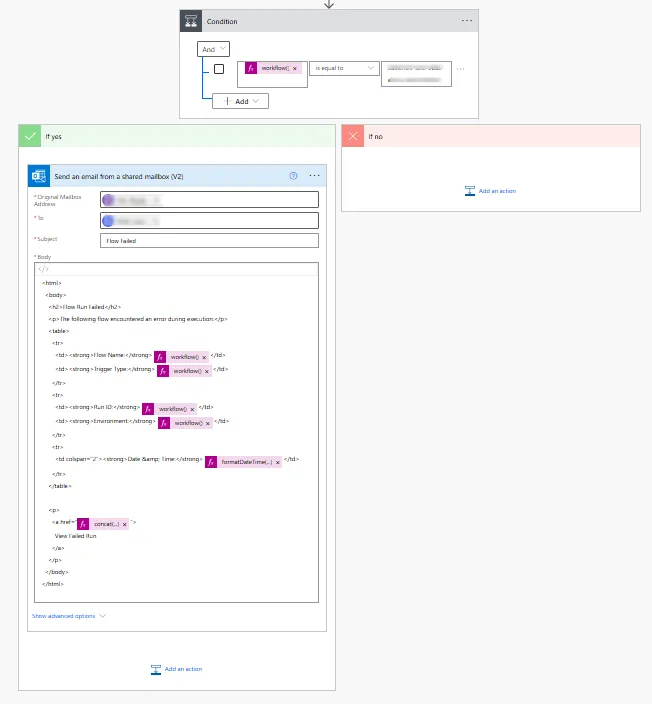
Complete flow structure with workflow metadata:
1. Trigger: [Your trigger type]
2. Compose: Flow Run URL
Inputs:
concat(
'https://make.powerautomate.com/environments/',
workflow()?['tags']?['environmentName'],
'/flows/',
workflow()?['name'],
'/runs/',
workflow()?['run']?['name']
)
3. Scope: Try
3.1 [Your main workflow actions]
3.2 Create item (Success Log)
List: Flow Execution Log
Title: workflow tags flowDisplayName
Status: Success
Run URL: outputs Compose_Flow_Run_URL
4. Scope: Catch (Configure run after: has failed)
4.1 Compose: Error Details
Inputs:
FlowName workflow tags flowDisplayName
RunID workflow run name
Environment workflow tags environmentName
RunURL outputs Compose_Flow_Run_URL
Timestamp utcNow
4.2 Create item (Error Log)
List: Flow Error Log
Title: concat ERROR workflow tags flowDisplayName
Details: outputs Compose_Error_Details
4.3 Send an email (V2)
To: admin@company.com
Subject: concat Flow Failed workflow tags flowDisplayName
Body: HTML formatted with flow name, environment, run ID, timestamp, and clickable View Details button
Reusable child flow for error notifications:
Create a child flow called "[Child] Send Error Notification"
Trigger: When a flow is run from another flow (V2)
Inputs:
- ErrorMessage (text)
- FailedAction (text)
Compose: Parent Flow Details
FlowName workflow tags flowDisplayName
RunURL concat environments workflow tags environmentName flows workflow name runs workflow run name
Send an email (V2):
Subject: concat Error in workflow tags flowDisplayName
Body: formatted error details with workflow metadata
Call from parent flows:
Run a flow built with Power Automate
Flow: [Child] Send Error Notification
ErrorMessage: body Failed_Action error message
FailedAction: "Update Record"
Build a centralised error notification child flow that all your production flows call when failures occur. This child flow uses workflow() to get parent flow details and sends standardised error notifications. Update the notification format once in the child flow, and all parent flows benefit. This ensures consistent error reporting across your entire Power Automate estate.
Other Useful Workflow Metadata
Additional workflow() properties for advanced scenarios:
| Property | Expression | Use Case |
|---|---|---|
| Workflow ID | workflow()?['name'] | Unique identifier for the flow itself (persists across runs) |
| Workflow type | workflow()?['type'] | Returns "Microsoft.Logic/workflows/runs" |
| Organisation name | workflow()?['tags']?['xrmOrganizationUniqueName'] | Dataverse organisation identifier (Dataverse environments only) |
| Run type | workflow()?['run']?['type'] | Type of execution |
Using organisation name for Dataverse URLs:
// Construct Dataverse record URL
concat(
'https://',
workflow()?['tags']?['xrmOrganizationUniqueName'],
'.crm.dynamics.com/main.aspx?etn=account&id=',
variables('varRecordID')
)
Combining with trigger metadata:
// For Dataverse triggers, combine workflow and trigger info
Compose: Complete Execution Context
{
"FlowName": "@{workflow()?['tags']?['flowDisplayName']}",
"RunID": "@{workflow()?['run']?['name']}",
"TriggerType": "@{triggerOutputs()?['body']?['@odata.type']}",
"RecordID": "@{triggerOutputs()?['body/accountid']}",
"ModifiedBy": "@{triggerOutputs()?['body/modifiedby']}",
"ModifiedOn": "@{triggerOutputs()?['body/modifiedon']}"
}
Flow run origin detection:
// Check if flow was manually triggered vs automated
// Manual runs have specific run ID patterns
Condition:
length(workflow()?['run']?['name'])
is less than
20
If yes: Manually triggered
If no: Automated trigger
Creating comprehensive audit records:
Add a new row (Dataverse):
Table: Flow Audit Log
Flow Name: @{workflow()?['tags']?['flowDisplayName']}
Flow ID: @{workflow()?['name']}
Run ID: @{workflow()?['run']?['name']}
Environment: @{workflow()?['tags']?['environmentName']}
Organisation: @{workflow()?['tags']?['xrmOrganizationUniqueName']}
Run URL: @{outputs('Compose_Flow_Run_URL')}
Executed By: @{triggerOutputs()?['body/modifiedby']}
Execution Start: @{utcNow()}
Status: Success
Records Processed: @{length(outputs('List_rows')?['body/value'])}
The xrmOrganizationUniqueName property only exists for flows in Dataverse-enabled environments. Flows in default Power Automate environments without Dataverse won't have this property. Always use safe navigation (workflow()?['tags']?['xrmOrganizationUniqueName']) and test in your specific environment type before relying on organisation-specific properties.
Next Steps
You now understand how to extract workflow metadata using the workflow() function in Power Automate. This enables self-documenting flows, comprehensive error notifications, audit logging, and environment-aware conditional logic without hardcoding flow-specific information.
Expand your workflow metadata capabilities by exploring:
- Trigger metadata functions – Using triggerOutputs() and trigger() to capture trigger-specific information
- Action metadata – Accessing outputs(), result(), and other action-specific properties for detailed logging
- Monitoring dashboards – Building Power BI reports from flow execution logs created with workflow()
- Custom connectors – Creating webhook endpoints that receive workflow metadata for external monitoring
- Application Insights integration – Sending workflow metadata to Azure Application Insights for advanced analytics
- Solution deployment – Using workflow() to build environment-independent flows that adapt automatically
- Performance tracking – Combining workflow() with execution time calculations for performance monitoring
The Microsoft Workflow Definition Language functions reference provides comprehensive documentation on workflow(), trigger(), and other metadata functions for building sophisticated monitoring, logging, and self-documenting Power Automate flows.
Need this built for your business?
We design and build production-grade Power Platform solutions for FM, Construction and Manufacturing businesses.
Book a Discovery Call →