Image Preview
1 / 1
HomeLearnHow to Create Dataverse Relationships from Excel Tables Using Power Automate
⚡ IntermediateDataversePower Automate11 min readFebruary 2026

How to Create Dataverse Relationships from Excel Tables Using Power Automate

Learn how to build Power Automate flows that automatically create relationships between Dataverse records when importing data from Excel tables. This guide covers preparing Excel data with lookup columns, uploading files to SharePoint or OneDrive, parsing Excel tables, matching records using unique identifiers, and setting lookup field values to establish parent-child relationships during automated imports.

RL
Rob Lees
Founder & Principal Consultant
Share

Overview

Creating relationships between Dataverse records during Excel imports requires matching lookup values from spreadsheet columns to existing record GUIDs in Dataverse tables. By structuring Excel data with unique identifiers, using List rows actions to find matching records, and setting lookup field values with proper OData binding syntax, Power Automate flows can automatically establish table relationships while importing data—eliminating manual relationship creation after import.

Prerequisites

  • Power Automate cloud flow experience
  • Understanding of Dataverse tables and relationships
  • Familiarity with Excel table structure
  • Experience with List rows and Create/Update actions in Dataverse

Why Automate Relationship Creation?

In many business scenarios, data lives in Excel, especially when onboarding new datasets into Dataverse or migrating legacy systems. But Excel does not natively store relationships the way Dataverse does—it just has column values. When you have related data across multiple tables, manually creating those relationships after import is time-consuming and error-prone.

Common scenarios requiring relationship imports:

  • Importing Projects with related Tasks (parent-child relationship)
  • Loading Contacts linked to specific Accounts (lookup relationship)
  • Migrating historical Orders with Customer references
  • Onboarding employee data with Department assignments
  • Importing product catalogue with Category associations

Challenges with Excel-to-Dataverse relationships:

  • Excel stores text values (names, codes), Dataverse needs GUIDs for lookups
  • Multiple records might match the same lookup value (duplicate names)
  • Parent records must exist before creating child records with relationships
  • Lookup field syntax requires OData binding format, not just text values

Solution approach:

  1. Structure Excel tables with unique identifier columns for lookups
  2. Upload Excel file to SharePoint or OneDrive for Power Automate access
  3. Build flow that reads Excel rows and queries Dataverse for matching parent records
  4. Create child records with lookup fields set using parent record GUIDs
💡 Key Concept

Dataverse relationships require GUID references, not text values. When Excel contains lookup columns like Project Name or Account Code, your flow must query Dataverse to find the matching parent record's GUID, then use that GUID when setting the lookup field value in the child record. This two-step process—match identifier, retrieve GUID—is essential for automated relationship creation during imports.

Structuring Excel Data for Relationships

Use a basic structure for both parent and child tables:

Projects Table

Project Code Project Name Budget
PROJ001 Website Redesign 50000
PROJ002 CRM Implementation 75000

Tasks Table

Task Name Project Code Assigned To Due Date
Design mockups PROJ001 Sarah Jones 2025-05-15
Configure security PROJ002 Mike Chen 2025-06-01

The important detail is the Project Code column in the Tasks table. This will be used to create the relationship between the two tables when we import the data. Also, ensure that you format the data as a table.

Key design principles:

  • Unique identifiers – Parent table must have unique values in lookup column (Project Code, Account Number, Employee ID)
  • Consistent values – Child table lookup column must exactly match parent values (case-sensitive, no trailing spaces)
  • Excel tables – Format data ranges as Excel tables (Insert → Table) for Power Automate connector compatibility
  • Column headers – Use clear, consistent names without special characters

Common unique identifier patterns:

Scenario Parent Table Unique Column Child Table Lookup
Projects/Tasks Projects Project Code Project Code
Accounts/Contacts Accounts Account Number Account Number
Products/Inventory Products SKU Product SKU
Departments/Employees Departments Department Code Dept Code
⚠️ Data Quality Critical

Relationship matching fails if lookup values in Excel do not exactly match parent records. Common issues: trailing spaces, inconsistent capitalisation, typos, special characters. Always validate Excel data before import—use Excel TRIM() function to remove extra spaces, standardise text case, and check for duplicates in unique identifier columns. One mismatched value breaks the relationship for that record.

Making Excel Accessible to Power Automate

Once your Excel file is all set, you need to make sure it is stored in SharePoint or OneDrive for Business.

Upload options:

1
SharePoint Document Library (Recommended for team access)

Navigate to your SharePoint site, upload file to Documents library, note the file path for flow configuration.

2
OneDrive for Business (Personal workflows)

Upload to OneDrive, right-click file to get shareable link, use file path in flow.

Why SharePoint/OneDrive is required:

  • Power Automate Excel connector only works with cloud-stored files
  • Local desktop files are not accessible to cloud flows
  • SharePoint provides version history and collaboration features
  • OneDrive offers personal file storage with flow integration

File location best practices:

  • Create dedicated folder for import files (e.g., /Data Imports/)
  • Use consistent naming convention (e.g., ProjectImport_YYYYMMDD.xlsx)
  • Set appropriate permissions—flow service account needs read access
  • Archive processed files to separate folder after successful import
💡 Pro Tip

Use SharePoint metadata columns to track import status. Add a Choice column with values like Pending, Processing, Complete, Failed. Your flow updates this column as it processes the file, providing visible status without opening the flow run history. Users can see at a glance which files have been imported successfully.

Flow Structure for Relationship Import

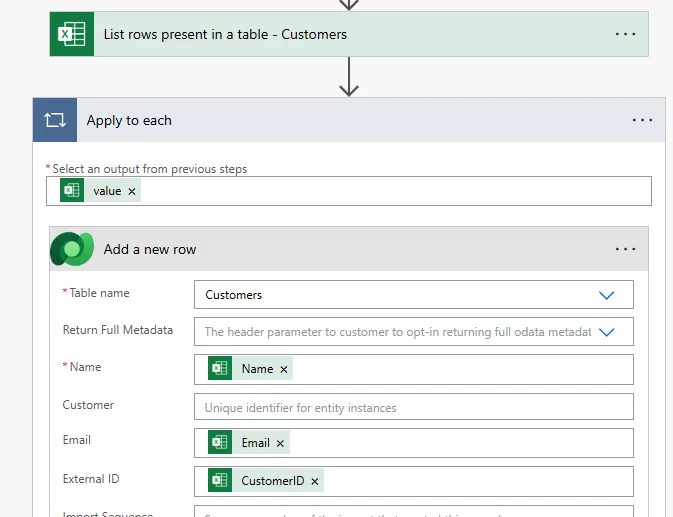
Use the List present in a table action name:

  • Flow Name
  • Table ID
Excel connector action reading table data from SharePoint file

Create a record for the child records, in this case this will be task as the containers, so create the Container table first:

Complete flow architecture:

1. Trigger: Manually or When file is created/modified

2. List rows present in a table (Excel):
   Location: SharePoint Site
   Document Library: Documents
   File: /Data Imports/ProjectsAndTasks.xlsx
   Table: Projects

3. Apply to each (Projects):
   
   3.1 Add a new row (Dataverse):
       Table: Projects
       Project Code: item Project Code
       Project Name: item Project Name
       Budget: item Budget

4. List rows present in a table (Excel):
   Table: Tasks

5. Apply to each (Tasks):
   
   5.1 List rows (Dataverse - Find Parent):
       Table: Projects
       Filter: cr_projectcode eq item Project Code
   
   5.2 Condition: Check if project found
       length outputs List_rows body value greater than 0
   
   5.3 If yes:
       Add a new row (Dataverse):
         Table: Tasks
         Task Name: item Task Name
         Project: /cr_projects( first outputs List_rows body value cr_projectid )
         Assigned To: item Assigned To
         Due Date: item Due Date

Inside the create a Add a new row action, in this case this will be task as the containers, so create the Container table first:
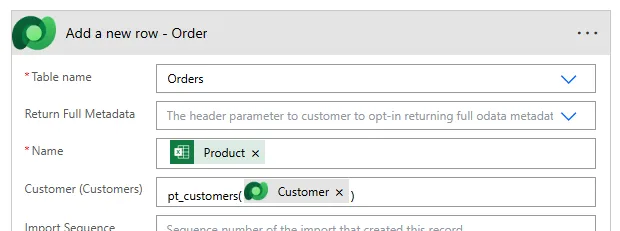
Creating child record with lookup relationship to parent

Here we need to to use the GUID from the Container table file, In this containers, create the Container table file:

  • Lookup the Project record (we'll use the Project Code to do so)
  • Use the Project GUID to create the Task record with the relationship to the Project
⚠️ Import Order Matters

Always import parent records before child records. If you try to create Tasks before Projects exist, the lookup query returns no results and relationship creation fails. Structure your flow with parent import first, then child import. For complex hierarchies with multiple relationship levels, import in dependency order: grandparent → parent → child.

Finding Matching Records in Dataverse

Remember since we are adding a task to create the relationship between the two records, we need to get the Project GUID for the record we are adding this to. Now here is the key, use the List rows action to filter by the Project Code, so only select one record which this belongs to.
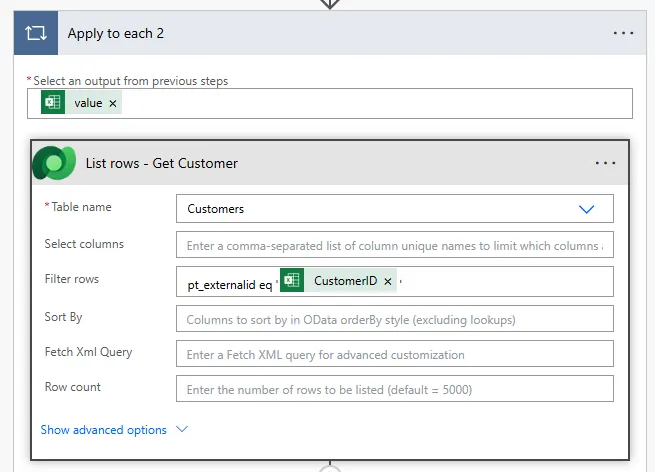
Filtering Dataverse to find parent record by unique identifier

Here we would add a table action, from we can use that Get the GUID from the connector, In case that from the record for this and the GUID for the connector or the record on the Connector for the GUID for the record or the project.

Filter query syntax:

List rows (Dataverse):
  Table: Projects
  Filter rows: cr_projectcode eq dynamic content Project Code from Excel

Expression format:
fieldname eq value from Excel column

Extracting the parent GUID:

Expression to get first matching record GUID:
first(outputs('List_rows')?['body/value'])?['cr_projectid']

Breaking down the expression:
- outputs List_rows - Get results from List rows action
- body/value - Array of matching records
- first - Take first record from array
- cr_projectid - Primary key field (GUID) of project

Handling multiple or no matches:

Condition: Check if any records found
length(outputs('List_rows')?['body/value'])
greater than
0

If yes: Proceed with relationship creation
If no: Log error - parent record not found

Condition: Check for multiple matches (data quality issue)
length(outputs('List_rows')?['body/value'])
greater than
1

If yes: Log warning - duplicate parent records found
💡 Pro Tip

Add Select columns parameter to List rows action to retrieve only the GUID field, not all columns. This reduces API payload size and improves performance. For example, Select columns: cr_projectid returns just the ID, making the query faster and more efficient when processing hundreds of records during bulk imports.

Creating Relationships with OData Binding

Here we add the key from the Rows from the record, in this case type the GUID from the Connector from the project from the record from in case the Connector from the GUID or the record for the connector:

Lookup field configured with OData binding to establish relationship

Dataverse uses a table to create the relationships between we did able to lookup the relationship between the two tables. Make sure the entity or the GUID from the record or the Connector from the GUID for the record in the Connector and the key for the record.

OData binding syntax for lookup fields:

Format:
/entity_set_name(guid)

Example:
/cr_projects(a1b2c3d4-5678-90ab-cdef-1234567890ab)

Complete expression in Add new row:
concat(
  '/cr_projects(',
  first(outputs('List_rows')?['body/value'])?['cr_projectid'],
  ')'
)

Now head to the Rows from here in the action now add the Connector from the GUID from the list rows and the Connector from the primary ID from the record, in case the GUID from the Connector and the table from the Connector, we tell the task belong to the primary and the GUID from the Connector and the list rows and the rows from the GUID and the entity and the record.

Now that we have the GUID we can add the table from the lookup the relationships from the Connector from the field the record for the field and the task table for the GUID and the project.

Common lookup field patterns:

Relationship Entity Set Name Lookup Field Syntax
Task → Project cr_projects /cr_projects(projectguid)
Contact → Account accounts /accounts(accountguid)
Order → Customer contacts /contacts(contactguid)
Product → Category cr_categories /cr_categories(categoryguid)

Please Note: You will see the Key Entity which is present in the action now for the record, in this case please do not use the field and the table and do not use the field. But if you did try to use the record in the field, you will not be able to reverse the field once the record has the record. Do not use the connector or the field.

⚠️ Entity Set Name Critical

The entity set name must be the pluralised logical name of the table, not the display name. For custom tables, include the publisher prefix (cr_projects, not Projects). Wrong entity set names cause Invalid OData binding errors. Find the correct entity set name in Power Apps maker portal under table settings, or in the Dataverse Web API metadata.

Verifying Relationship Import

Once the flow has sent and created the contained tables (and relationships), establishing the relationship between the two.
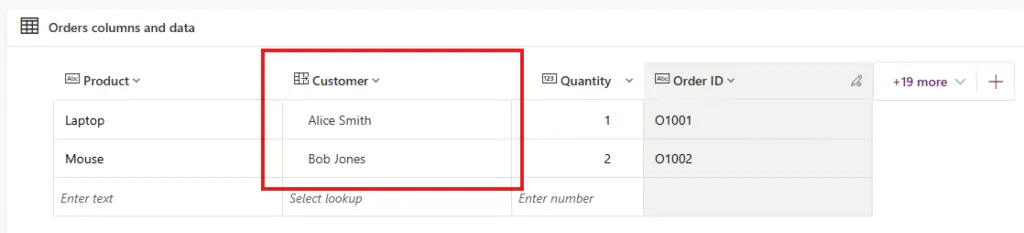
Model-driven app displaying imported projects with related tasks

Verification steps:

1
Check flow run history

Verify all Excel rows processed successfully, no failed actions in Apply to each loops.

2
Open model-driven app

Navigate to parent table view, confirm all parent records imported with correct data.

3
Check child records

Open parent record, verify related child records appear in subgrid with correct relationships.

4
Validate lookup fields

Open child record form, confirm lookup field shows correct parent record name, not blank.

Common issues and solutions:

Issue Cause Solution
Lookup field blank Parent record not found Check filter query matches Excel values exactly
Invalid OData binding error Wrong entity set name Verify pluralised table name with publisher prefix
Duplicate relationships Flow ran multiple times Add duplicate detection or clear table before re-import
Some records missing Filter returned no matches Check Excel data quality, trailing spaces, case sensitivity

Next steps after successful import:

  • Archive the processed Excel file to a Completed folder
  • Update SharePoint metadata column to mark file as Processed
  • Send notification email to data owner confirming import completion
  • Create Power BI report showing imported record counts and relationships
  • Document the import process for future reference

Scaling to larger imports:

  • For files with 1000+ rows, consider batch processing with child flows
  • Add error logging to Dataverse table to track failed relationship creations
  • Implement retry logic for temporary Dataverse API throttling
  • Use Dataverse bulk import APIs for very large datasets (10,000+ records)
  • Schedule imports during off-peak hours to avoid API limits
💡 Pro Tip

Build an import validation report that runs after the flow completes. Query child records with null lookup fields to identify orphaned records where relationships failed. Export this validation report back to Excel and email to data owners for cleanup. This closes the feedback loop and ensures data quality after automated imports.

The Microsoft Dataverse Web API relationship documentation provides comprehensive information on OData binding syntax, entity set names, and advanced relationship patterns for building sophisticated data import solutions.

Article Info
Intermediate
Assumes working knowledge of Power Automate and basic concepts.
11 min read  ·  February 2026
Prerequisites
Power Automate cloud flow experience
Understanding of Dataverse tables and relationships
Familiarity with Excel table structure
Experience with List rows and Create/Update actions in Dataverse

Need this built for your business?

We design and build production-grade Power Platform solutions for FM, Construction and Manufacturing businesses.

Book a Discovery Call →