
Creating a Scheduled Reminder Flow
Go to Power Automate → Create → Scheduled cloud flow.
Set how often the flow should run to check for reminders. For daily reminders, set to run once per day at a specific time (e.g., 9:00 AM).
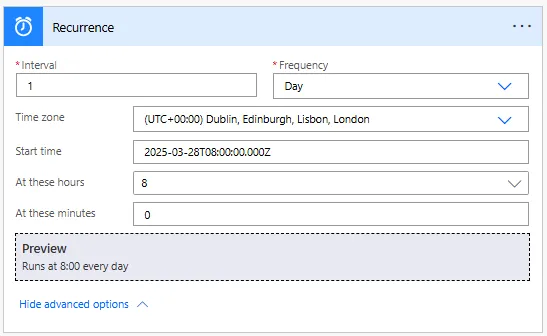
Recurrence settings explained:
| Setting | Purpose | Example |
|---|---|---|
| Interval | How many units between runs | 1 (every single day/hour/week) |
| Frequency | Unit of time (Day, Week, Hour, etc.) | Day (for daily reminders) |
| Time zone | Which time zone for scheduling | (UTC) Coordinated Universal Time or your local zone |
| At these hours | Specific hour(s) to run | 9 (9:00 AM) |
| At these minutes | Specific minute(s) to run | 0 (on the hour) |
Common recurrence patterns for reminders:
// Daily reminders at 9 AM
Interval: 1
Frequency: Day
Time zone: (UTC) Coordinated Universal Time
At these hours: 9
At these minutes: 0

// Twice daily (morning and afternoon)
Interval: 1
Frequency: Day
At these hours: 9, 14
At these minutes: 0

// Weekly reminders every Monday
Interval: 1
Frequency: Week
On these days: Monday
At these hours: 9

// Hourly checks during business hours
Interval: 1
Frequency: Hour
Time zone: Your local time
(Runs every hour, 24/7)
Now to get the records, we will use a Recurrence Trigger so we can run this flow based_reminders as we are using a SharePoint list. Below is an example of the Recurrence that we are using:
Getting Records with Approaching Due Dates
After the Recurrence trigger, we will get the records we will use a filter query to get Items that have a Recurrence filter. Below is an example of the Recurrence filter that we are using:
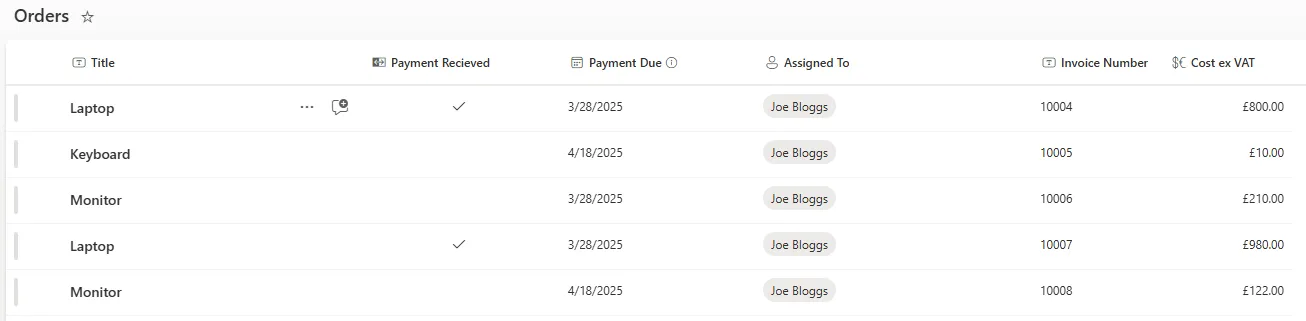
Now from the above flow the item you be the item from SharePoint that have been returned. And then just sent as email reminders to the folks they are assigned for. So that way they know what's coming up in the next two days.
Using Get items with filter query:
Most items we look to use from the list are all the Recurrence filter which can see inside the Get items such as List A which could send text to see if All or Any do that. Here we're doing it differently by using a filter, which works a little better. Firstly we get the date two days so that's our starting point and then we use the Filter query expression to filter on the (Due Date) so if there's a time with the due dates inside the two days they return those records to list in the Apply to each loop.
Action: Get items
Site Address: [Your SharePoint site]
List Name: Tasks

Filter Query:
DueDate eq addDays(utcNow(), 2, 'yyyy-MM-dd')
This filter query retrieves only records where the Due Date column equals exactly 2 days from today. The `addDays()` function adds 2 days to the current date, and formatting as 'yyyy-MM-dd' ensures the comparison works correctly.
Understanding the date filter expression:
| Component | Purpose | Example |
|---|---|---|
| DueDate | SharePoint column name (internal name, no spaces) | DueDate, ExpiryDate, RenewalDate |
| eq | Equals operator | eq (equals), gt (greater than), lt (less than) |
| addDays() | Adds specified days to a date | addDays(utcNow(), 7) = 7 days from now |
| utcNow() | Current UTC date/time | 2024-05-12T14:30:00Z |
| 'yyyy-MM-dd' | Date format for comparison | 2024-05-14 |
Next we need to filter by the date, as we need to send everything that is due in 2 days. We can use the 'addDays()' so it just searches if the due date matches anything which is the same as the calculation below.
// Filter expression components
addDays(utcNow(), 2, 'yyyy-MM-dd')

// Breaks down to:
utcNow() = Current date/time
addDays(..., 2) = Add 2 days
'yyyy-MM-dd' = Format as 2024-05-14
To before this we need to connect two days hence we will use column formats...
Alternative filter queries for different reminder windows:
// Records due exactly 7 days from now
DueDate eq addDays(utcNow(), 7, 'yyyy-MM-dd')

// Records due in the next 7 days (range)
DueDate ge formatDateTime(utcNow(), 'yyyy-MM-dd') and DueDate le addDays(utcNow(), 7, 'yyyy-MM-dd')

// Records due tomorrow
DueDate eq addDays(utcNow(), 1, 'yyyy-MM-dd')

// Records due in next 30 days
DueDate ge formatDateTime(utcNow(), 'yyyy-MM-dd') and DueDate le addDays(utcNow(), 30, 'yyyy-MM-dd')

// Records overdue (due date in the past)
DueDate lt formatDateTime(utcNow(), 'yyyy-MM-dd')Sending Individual Reminder Emails
If we just see where this list we should see the total will result in:
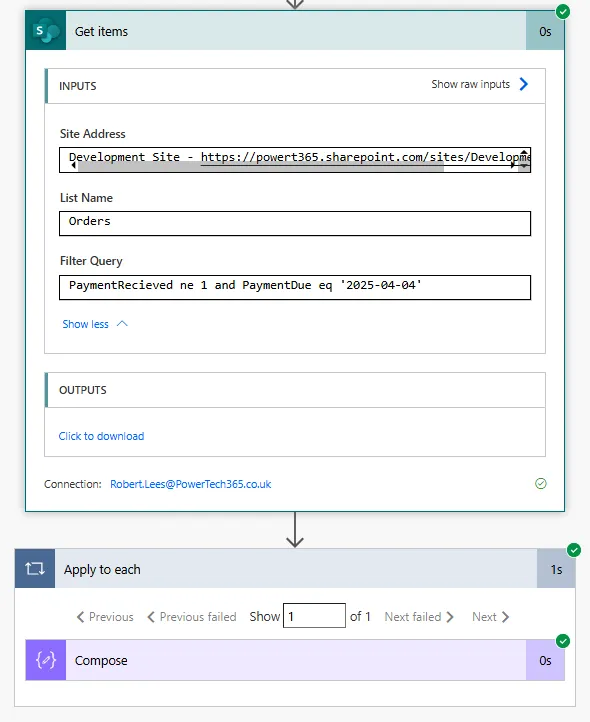
After Get items returns the filtered records, use Apply to each to loop through the results and send an email for each record:
Select output from previous step: Value (from Get items).
Configure the email to send to the person assigned to the task.
To: Use dynamic content "Assigned To Email" or the person column from the current item.
Include task details like Title, Due Date, Description from the current item.
Example email configuration:
To: Assigned To Email
Subject: Reminder: Task due in 2 days - [Title]
Body:
Hello,

This is a reminder that the following task is due in 2 days:

Task: [Title]
Due Date: [Due Date]
Description: [Description]
Priority: [Priority]

Please ensure this task is completed on time.

Thank you
Use dynamic content from the current item in the Apply to each loop to personalise each email with that record's details.
Accessing Person column email addresses:
If your "Assigned To" column is a Person type column in SharePoint, access the email using:
// Dynamic content picker shows:
Assigned To Email

// Expression format:
items('Apply_to_each')?['AssignedTo']?['Email']
Person columns store multiple properties (DisplayName, Email, JobTitle). Use the Email property to get the email address for sending.
Handling Multiple Upcoming Due Dates
To summarise this you can easily create a single flow using recurring to check due dates so much so it will be automatic. Secondly, use the Apply to Each to use for loop for many different upcoming tasks and then each person can have their own reminder email.
Example scenario with multiple records:
If today is 12 May 2024, and your filter checks for due dates on 14 May 2024 (2 days from now):
- Task A: Due 12 May – Not included (due today, not in 2 days)
- Task B: Due 14 May, assigned to Bob – Included, Bob receives reminder
- Task C: Due 14 May, assigned to Alice – Included, Alice receives reminder
The flow sends two separate emails—one to Bob for Task B, one to Alice for Task C. Each email contains the details of their specific task.
Consolidating multiple reminders per person:
If the same person has multiple tasks due on the same date, you might want to send one email listing all their tasks instead of separate emails. This requires grouping logic:
1. Get items (filtered by due date)

2. Select action - Extract emails
   Map: items('Apply_to_each')?['AssignedTo']?['Email']
   Output: Array of email addresses

3. Compose - Get unique emails
   Inputs: union(body('Select'), body('Select'))
   Output: Deduplicated list of email addresses

4. Apply to each - Unique email
   Select: Output from Compose

5. Filter array - Tasks for this person
   From: Output from Get items
   Condition: AssignedTo Email equals Current item (from unique emails)

6. Create HTML table - List of tasks
   From: Output from Filter array
   Columns: Title, Due Date, Priority

7. Send email
   To: Current item (email address)
   Body: HTML table of all their tasks
This advanced pattern sends one email per person listing all their upcoming tasks, rather than one email per task.
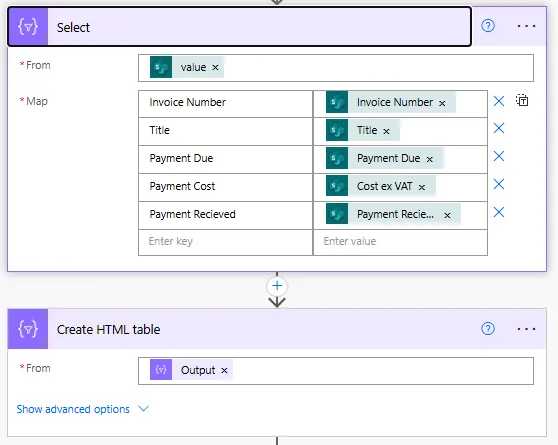
Email body with HTML table:
Subject: Reminder: You have @{length(body('Filter_array'))} tasks due in 2 days

Body:
Hello,

You have the following tasks due on @{addDays(utcNow(), 2, 'dd MMMM yyyy')}:

@{body('Create_HTML_table')}

Please ensure these tasks are completed on time.

Thank you
The HTML table action automatically formats the filtered tasks into a table showing Title, Due Date, and Priority for all tasks assigned to that person.