Overview
Power Automate actions like List rows and Get items return arrays of records, even when only one record exists. To access the first record without looping, use array index notation [0] in expressions. This allows direct access to the first item’s properties, making flows cleaner and more efficient than creating loops that only process one record.
Prerequisites
- Power Automate cloud flow experience
- Understanding of arrays and dynamic content
- Familiarity with expressions
- Basic knowledge of List rows or Get items actions
Why Extract the First Array Value?
In Power Automate there may be times where you need to loop through a series of records to get a specific value, but what if you don't want to loop through all the records and you in fact only need the first record.
Common scenarios requiring the first array item:
- List rows returns multiple records but you only need the most recent one
- Get items from SharePoint filtered to one result, but returns an array
- Search actions return arrays even when you expect a single match
- Compose actions that build arrays where you only need the first element
- Parse JSON outputs that contain arrays of objects
Why avoiding loops matters:
- Performance – Accessing first item directly is faster than Apply to each with one iteration
- Simplicity – No need for loops, conditions, or variables to extract single values
- Clarity – Flow logic is clearer when you directly access what you need
- Action limits – Fewer actions consumed (no loop overhead)
Actions like List rows, Get items, and Parse JSON return arrays, not single objects—even when the result contains only one record. The dynamic content picker shows the array itself, not individual items. To access properties of the first record, you must use array index notation [0] in expressions to reference the first element before accessing its properties.
Why You Shouldn't Use Apply to Each
We see a lot of people use the first or last record by using variables and looping though lots of records when they only need the first record. This can also be time consuming especially when looking through hundreds of records.
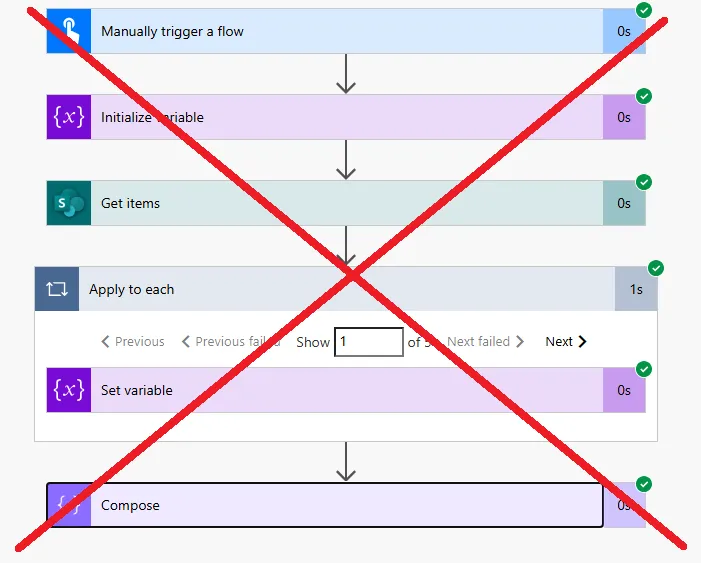
The inefficient pattern:
1. Get items (returns 100 records)
2. Apply to each
Items: value (from Get items)
3. Inside loop: Compose
Inputs: Current item Title
4. After first iteration, you have the first record's Title
But the loop continues through all 99 remaining records unnecessarily
Why this is problematic:
- Wasteful – Loops through all records even though you only need the first one
- Slow – Apply to each has overhead for each iteration
- Complex – Requires setting variables or using first iteration conditions
- Action count – Consumes many actions if array is large
- Confusing – Other maintainers wonder why there's a loop for one item
Attempting to exit early doesn't help:
Apply to each
Condition: Is this the first iteration?
If yes:
Set variable to current item Title
Terminate (doesn't stop Apply to each!)
// Terminate stops the flow entirely, not just the loop
// The loop continues through all items regardless
There's no native "break" or "exit loop" action in Apply to each. The loop always processes all items unless the entire flow terminates.
Many users think they need Apply to each to access array items because the dynamic content picker doesn't directly show individual record properties—it only shows "value" or the array name. This leads to unnecessarily wrapping simple array access in loops. The correct approach is using expressions with [0] to directly access the first item, not looping.
Using Array Index Notation [0]
There are a couple of ways we can get the first last value, let's start with the first value, one way is to use the array index. If we first add the index into it, we need this to start with 0. Every time to need to run the loop it will automatically create an 'Apply To Each' loop for us. We need this to start with 0 so can get the first item in the array.
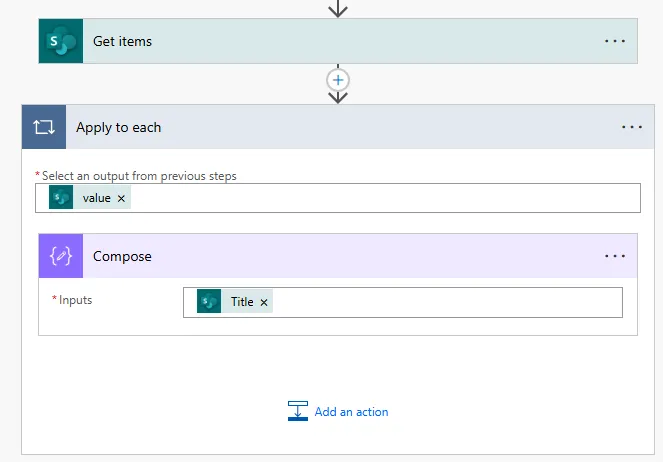
From the apply to each we need the 'value' which will look something like below
The expression format:
outputs('Get_items')?['body/value']?[0]
Breaking down the expression:
| Component | Purpose | Explanation |
|---|---|---|
| outputs('Get_items') | Reference the action | Gets output from "Get items" action |
| ?['body/value'] | Access the array | Navigates to the array of records |
| ?[0] | Get first item | Index 0 = first element in array |
The next part we want is the value of the item
// Complete expression to get first record's Title
outputs('Get_items')?['body/value']?[0]?['Title']
Understanding array indexing:
- [0] = First item
- [1] = Second item
- [2] = Third item
- [-1] = Last item (not supported in Power Automate, use last() function instead)
We can see above we are getting the 'Title' value from item zero in each. As we only want to first item in the array we can combine these together to only get the first item, so we need the SET and the [0]' which between the two so only get the first item IT and so on.
Why the ? operators are important:
The ? (safe navigation operator) prevents errors when properties don't exist. If the array is empty or a property is missing, the expression returns null instead of causing the flow to fail.
// Without ? operators (unsafe)
outputs('Get_items')['body/value'][0]['Title']
// Error if array is empty or Title doesn't exist
// With ? operators (safe)
outputs('Get_items')?['body/value']?[0]?['Title']
// Returns null if array is empty or Title doesn't exist
Always use the ? safe navigation operator when accessing array items and their properties. If the array might be empty (zero records returned), accessing [0] without ? will cause the flow to fail. With ?, the expression returns null for empty arrays, which you can then handle with conditions or default values using coalesce().
Getting Specific Properties from First Record
Examples for different action types:
// SharePoint Get items - First item's Title
outputs('Get_items')?['body/value']?[0]?['Title']
// SharePoint Get items - First item's ID
outputs('Get_items')?['body/value']?[0]?['ID']
// SharePoint Get items - First item's Created date
outputs('Get_items')?['body/value']?[0]?['Created']
// Dataverse List rows - First row's name
outputs('List_rows')?['body/value']?[0]?['cr_name']
// Dataverse List rows - First row's GUID
outputs('List_rows')?['body/value']?[0]?['cr_recordid']
// Parse JSON - First item from parsed array
outputs('Parse_JSON')?['body']?[0]?['propertyName']
Accessing Person column emails:
// SharePoint Person column - First item's AssignedTo email
outputs('Get_items')?['body/value']?[0]?['AssignedTo']?['Email']
// SharePoint Person column - First item's AssignedTo display name
outputs('Get_items')?['body/value']?[0]?['AssignedTo']?['DisplayName']
Person columns are objects containing Email, DisplayName, and other properties. Use additional property navigation after [0] to access these nested values.
Accessing lookup column values:
// Dataverse lookup - First row's related account name
outputs('List_rows')?['body/value']?[0]?['_parentcustomerid_value@OData.Community.Display.V1.FormattedValue']
// Dataverse lookup - First row's lookup GUID
outputs('List_rows')?['body/value']?[0]?['_parentcustomerid_value']
Combining with other expressions:
// Format first item's date
formatDateTime(outputs('Get_items')?['body/value']?[0]?['DueDate'], 'dd/MM/yyyy')
// Check if first item's status equals "Active"
equals(outputs('List_rows')?['body/value']?[0]?['statuscode'], 1)
// Concatenate first item's name with other text
concat('Hello ', outputs('Get_items')?['body/value']?[0]?['Title'], '!')
// Use in condition
if(
equals(outputs('Get_items')?['body/value']?[0]?['Status'], 'Complete'),
'Done',
'Pending'
)
Using the entire first record object:
// Get the complete first record as an object
outputs('Get_items')?['body/value']?[0]
// Useful for:
// - Passing entire record to another action
// - Updating another record with all first record's values
// - Compose action for debugging/viewing all properties
Use exact column names—SharePoint and Dataverse are case-sensitive in expressions. "Title" works, "title" doesn't. For SharePoint, use display names (Title, Created). For Dataverse, use logical names (cr_name, cr_status). Check action outputs in flow run history to see the exact property names available in the returned array.
What Happens When Array is Empty?
We can also use the expression 'first'
first(outputs('Get_items')?['body/value'])?['Title']
Comparing [0] vs first() function:
| Method | Syntax | When Empty Array |
|---|---|---|
| [0] with ? | outputs(...)?['body/value']?[0] | Returns null (safe) |
| [0] without ? | outputs(...)['body/value'][0] | Flow fails with error |
| first() | first(outputs(...)?['body/value']) | Returns null (safe) |
Protecting against empty arrays with conditions:
// Check if array has items before accessing first
Condition: length(outputs('Get_items')?['body/value'])
is greater than: 0
If yes:
// Safe to access first item
Compose: outputs('Get_items')?['body/value']?[0]?['Title']
If no:
// Handle empty array scenario
Compose: "No records found"
Using coalesce() for default values:
// If first item's Title is null/empty, use default
coalesce(
outputs('Get_items')?['body/value']?[0]?['Title'],
'Untitled'
)
// If array is empty or Title missing, returns "Untitled"
Combining length check with expression:
// Only get title if array has items, otherwise return default
if(
greater(length(outputs('Get_items')?['body/value']), 0),
outputs('Get_items')?['body/value']?[0]?['Title'],
'No records available'
)
Testing with empty arrays:
- Create test data with zero records matching your filter
- Run the flow and check if it fails or handles empty array gracefully
- Examine outputs to confirm null is returned instead of error
- Add appropriate default handling if needed
Always test your flows with empty result sets during development. Filter your data source so zero records match, then run the flow. This reveals whether your [0] expressions handle empty arrays safely or if you need to add length checks or coalesce() defaults to prevent failures in production when no matching records exist.
Using the first() Function
We could also use the expression 'first'
first(outputs('Get_items')?['body/value'])?['Title']
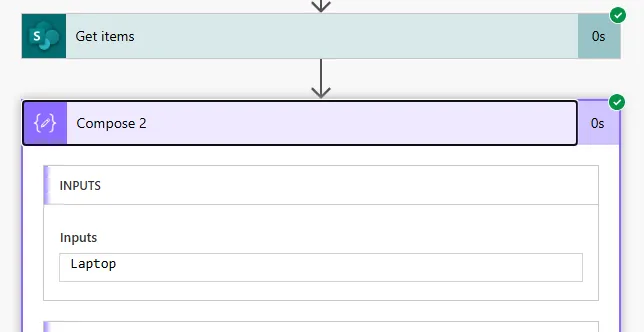
The result:
When to use [0] vs first():
| Scenario | Recommended | Reason |
|---|---|---|
| Always want first item | Either [0] or first() | Both work identically for first item |
| Accessing nested property | [0]?['PropertyName'] | More concise than first(...)?['PropertyName'] |
| Getting entire first record | first(array) | Clearer intent in code |
| Need second or third item | [1] or [2] | No second() or third() functions exist |
Combining first() with other array functions:
// Get first item from filtered array
first(
filter(
outputs('Get_items')?['body/value'],
item,
equals(item?['Status'], 'Active')
)
)?['Title']
// Get first item from sorted array
first(
sort(
outputs('Get_items')?['body/value'],
'Created'
)
)?['Title']
Performance comparison:
Both [0] and first() have identical performance—they're just different syntax for the same operation. Choose based on readability preference:
- [0] – More compact, common in programming
- first() – More explicit about intent, easier for non-developers to understand
Using with last() for comparison:
// Get first item
first(outputs('Get_items')?['body/value'])
// Get last item (no [-1] syntax in Power Automate)
last(outputs('Get_items')?['body/value'])
// Compare first and last
Condition:
first(outputs('Get_items')?['body/value'])?['Created']
is greater than
last(outputs('Get_items')?['body/value'])?['Created']
Unless you explicitly sort with an Order By query in List rows or Get items, the "first" item returned is whatever the data source returns first—not necessarily the oldest, newest, or any particular record. Always use Order By in your query if the order matters (e.g., Created desc for most recent, Title asc for alphabetical).
Next Steps
You now understand how to extract the first value from arrays in Power Automate using [0] index notation or the first() function, avoiding unnecessary Apply to each loops. This technique makes flows cleaner, faster, and easier to maintain when you only need single items from arrays.
Expand your array manipulation capabilities by exploring:
- Getting last array item – Using last() function or length-based indexing to access final records
- Array slicing – Extracting specific ranges of items (skip, take functions)
- Array filtering – Using filter() to get subset matching criteria before accessing first
- Array sorting – Using sort() to order arrays before taking first item
- Multiple array operations – Combining filter, sort, and first in single expressions
- Dynamic array access – Using variables to determine which index to access
- Null handling patterns – Advanced techniques with coalesce, if, and length checks
The Microsoft Workflow Definition Language functions reference provides comprehensive documentation on array functions, indexing syntax, and expression capabilities for building efficient data manipulation flows.
Need this built for your business?
We design and build production-grade Power Platform solutions for FM, Construction and Manufacturing businesses.
Book a Discovery Call →