
Image Preview
1 / 1
HomeLearnHow to Send Automated Email Reminders in Power Automate: Complete Guide to Scheduled Notifications
✦ BeginnerPower AutomateSharePoint12 min readApril 2025

How to Send Automated Email Reminders in Power Automate: Complete Guide to Scheduled Notifications

Learn how to build automated email reminder flows in Power Automate that check for upcoming due dates and send notifications to users. This guide covers scheduled triggers, filtering records by date, looping through results, and sending personalised reminder emails with dynamic content.

RL
Rob Lees
Founder & Principal Consultant
Share

Overview

Email reminder flows in Power Automate automate notification processes by checking data sources on a schedule, identifying records with approaching due dates, and sending reminder emails to relevant users. Using recurrence triggers, date filtering expressions, Apply to each loops, and dynamic email content, you can build reminder systems for tasks, payments, renewals, or any time-sensitive process.

Prerequisites

  • Power Automate cloud flow experience
  • Understanding of triggers and actions
  • Familiarity with SharePoint lists or Dataverse tables
  • Basic knowledge of date expressions

Why Automate Email Reminders?

There are many tasks that need your attention; with manual firing using tasks and reminders to do something can be quite helpful. In this post you will see how a single flow can send many email reminders based upon a calculation.

Common reminder scenarios:

  • Task due date reminders sent 2 days before deadline
  • Payment reminders for invoices due in 7 days
  • Contract renewal notifications 30 days before expiry
  • Subscription expiration warnings sent 14 days in advance
  • Event registration reminders 1 week before event date
  • Review deadline reminders for documents or reports

Benefits of automated reminders:

  • Consistency – Every record with an approaching due date receives a reminder, no manual oversight required
  • Timeliness – Reminders send at exactly the right time based on your schedule
  • Scalability – Handle hundreds of reminders with a single flow
  • Customisation – Personalise reminder content based on record data
  • Reliability – No dependency on manual checks or memory

To set up reminders in Power Automate we first need to do one a scheduled trigger. You create first set a schedule trigger, this runs once you choose a set time. Alternatively you can just do a manual button if you want to run it ad-hoc to check what reminders will get sent out but that would just be for you.

💡 Key Concept

Reminder flows run on a schedule (daily, weekly, hourly) and check for records meeting specific date criteria. The flow doesn't "remember" previous runs—each execution independently queries for records with due dates matching your reminder window. This means if a due date changes after a reminder is sent, the flow will send another reminder on the next run if the date still matches the criteria.

Creating a Scheduled Reminder Flow

1
Create a new automated cloud flow

Go to Power Automate → Create → Scheduled cloud flow.

2
Configure the Recurrence trigger

Set how often the flow should run to check for reminders. For daily reminders, set to run once per day at a specific time (e.g., 9:00 AM).
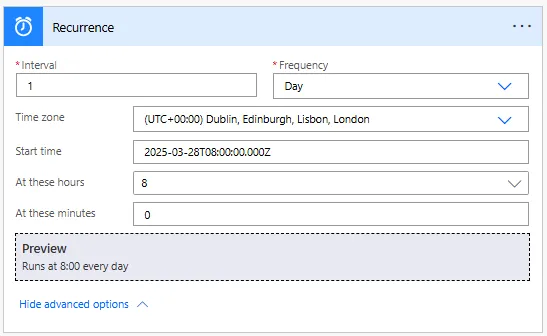
Recurrence trigger set to run daily for checking upcoming due dates

Recurrence settings explained:

Setting Purpose Example
Interval How many units between runs 1 (every single day/hour/week)
Frequency Unit of time (Day, Week, Hour, etc.) Day (for daily reminders)
Time zone Which time zone for scheduling (UTC) Coordinated Universal Time or your local zone
At these hours Specific hour(s) to run 9 (9:00 AM)
At these minutes Specific minute(s) to run 0 (on the hour)

Common recurrence patterns for reminders:

// Daily reminders at 9 AM
Interval: 1
Frequency: Day
Time zone: (UTC) Coordinated Universal Time
At these hours: 9
At these minutes: 0

// Twice daily (morning and afternoon)
Interval: 1
Frequency: Day
At these hours: 9, 14
At these minutes: 0

// Weekly reminders every Monday
Interval: 1
Frequency: Week
On these days: Monday
At these hours: 9

// Hourly checks during business hours
Interval: 1
Frequency: Hour
Time zone: Your local time
(Runs every hour, 24/7)

Now to get the records, we will use a Recurrence Trigger so we can run this flow based_reminders as we are using a SharePoint list. Below is an example of the Recurrence that we are using:

⚠️ Time Zone Consideration

Recurrence triggers use the time zone specified in the trigger settings, which might differ from your users' time zones. If you need reminders to send at 9 AM for users across multiple time zones, you need separate flows for each zone or more complex logic that calculates the appropriate send time based on user location. For most use cases, choosing UTC or your primary business time zone is sufficient.

Getting Records with Approaching Due Dates

After the Recurrence trigger, we will get the records we will use a filter query to get Items that have a Recurrence filter. Below is an example of the Recurrence filter that we are using:
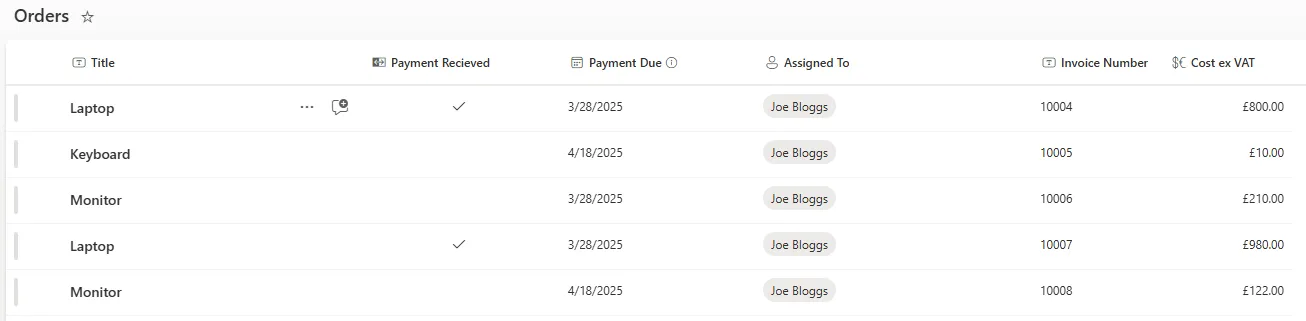
SharePoint list with task records containing due dates for reminder checks

Now from the above flow the item you be the item from SharePoint that have been returned. And then just sent as email reminders to the folks they are assigned for. So that way they know what's coming up in the next two days.

Using Get items with filter query:

Most items we look to use from the list are all the Recurrence filter which can see inside the Get items such as List A which could send text to see if All or Any do that. Here we're doing it differently by using a filter, which works a little better. Firstly we get the date two days so that's our starting point and then we use the Filter query expression to filter on the (Due Date) so if there's a time with the due dates inside the two days they return those records to list in the Apply to each loop.

Action: Get items
Site Address: [Your SharePoint site]
List Name: Tasks

Filter Query:
DueDate eq addDays(utcNow(), 2, 'yyyy-MM-dd')

This filter query retrieves only records where the Due Date column equals exactly 2 days from today. The `addDays()` function adds 2 days to the current date, and formatting as 'yyyy-MM-dd' ensures the comparison works correctly.

Understanding the date filter expression:

Component Purpose Example
DueDate SharePoint column name (internal name, no spaces) DueDate, ExpiryDate, RenewalDate
eq Equals operator eq (equals), gt (greater than), lt (less than)
addDays() Adds specified days to a date addDays(utcNow(), 7) = 7 days from now
utcNow() Current UTC date/time 2024-05-12T14:30:00Z
'yyyy-MM-dd' Date format for comparison 2024-05-14

Next we need to filter by the date, as we need to send everything that is due in 2 days. We can use the 'addDays()' so it just searches if the due date matches anything which is the same as the calculation below.

// Filter expression components
addDays(utcNow(), 2, 'yyyy-MM-dd')

// Breaks down to:
utcNow() = Current date/time
addDays(..., 2) = Add 2 days
'yyyy-MM-dd' = Format as 2024-05-14

To before this we need to connect two days hence we will use column formats...

Alternative filter queries for different reminder windows:

// Records due exactly 7 days from now
DueDate eq addDays(utcNow(), 7, 'yyyy-MM-dd')

// Records due in the next 7 days (range)
DueDate ge formatDateTime(utcNow(), 'yyyy-MM-dd') and DueDate le addDays(utcNow(), 7, 'yyyy-MM-dd')

// Records due tomorrow
DueDate eq addDays(utcNow(), 1, 'yyyy-MM-dd')

// Records due in next 30 days
DueDate ge formatDateTime(utcNow(), 'yyyy-MM-dd') and DueDate le addDays(utcNow(), 30, 'yyyy-MM-dd')

// Records overdue (due date in the past)
DueDate lt formatDateTime(utcNow(), 'yyyy-MM-dd')
💡 Pro Tip

Use the exact filter query format shown above with 'yyyy-MM-dd' formatting. SharePoint date columns store dates with time components (e.g., 2024-05-14T00:00:00), so formatting both sides of the comparison to 'yyyy-MM-dd' ensures the comparison works correctly. Without formatting, a due date of 2024-05-14 09:30:00 won't match your calculation of 2024-05-14 14:00:00 even though they're the same day.

Sending Individual Reminder Emails

If we just see where this list we should see the total will result in:
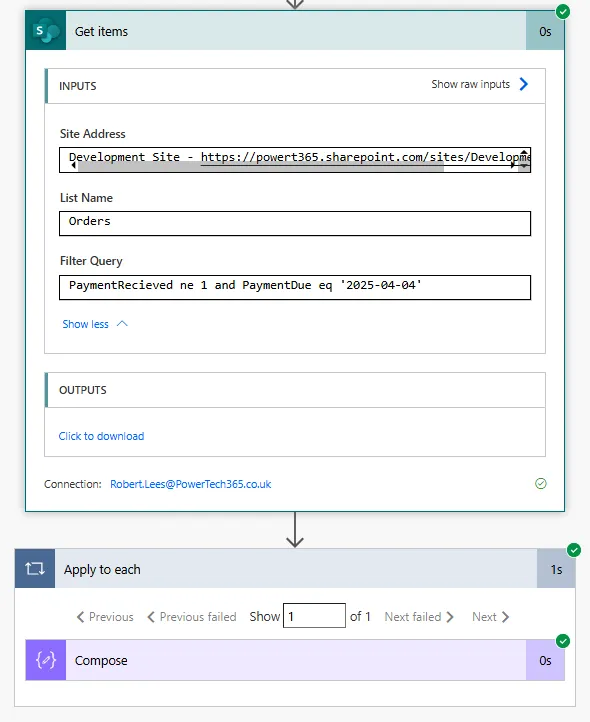
Filtered results showing only records due in 2 days

After Get items returns the filtered records, use Apply to each to loop through the results and send an email for each record:

1
Add "Apply to each" action

Select output from previous step: Value (from Get items).

2
Inside the loop, add "Send an email (V2)" action

Configure the email to send to the person assigned to the task.

3
Configure email recipients

To: Use dynamic content "Assigned To Email" or the person column from the current item.

4
Add email subject and body with dynamic content

Include task details like Title, Due Date, Description from the current item.

Example email configuration:

To: Assigned To Email
Subject: Reminder: Task due in 2 days - [Title]
Body:
Hello,

This is a reminder that the following task is due in 2 days:

Task: [Title]
Due Date: [Due Date]
Description: [Description]
Priority: [Priority]

Please ensure this task is completed on time.

Thank you

Use dynamic content from the current item in the Apply to each loop to personalise each email with that record's details.

Accessing Person column email addresses:

If your "Assigned To" column is a Person type column in SharePoint, access the email using:

// Dynamic content picker shows:
Assigned To Email

// Expression format:
items('Apply_to_each')?['AssignedTo']?['Email']

Person columns store multiple properties (DisplayName, Email, JobTitle). Use the Email property to get the email address for sending.

⚠️ Empty Email Addresses

If a record's Assigned To field is empty, the email action will fail. Add a Condition before Send email to check if the email address is not empty: empty(items('Apply_to_each')?['AssignedTo']?['Email']) equals false. Only send email if the condition is true. This prevents flow runs from failing due to missing assignments.

Handling Multiple Upcoming Due Dates

To summarise this you can easily create a single flow using recurring to check due dates so much so it will be automatic. Secondly, use the Apply to Each to use for loop for many different upcoming tasks and then each person can have their own reminder email.

Example scenario with multiple records:

If today is 12 May 2024, and your filter checks for due dates on 14 May 2024 (2 days from now):

  • Task A: Due 12 May – Not included (due today, not in 2 days)
  • Task B: Due 14 May, assigned to Bob – Included, Bob receives reminder
  • Task C: Due 14 May, assigned to Alice – Included, Alice receives reminder

The flow sends two separate emails—one to Bob for Task B, one to Alice for Task C. Each email contains the details of their specific task.

Consolidating multiple reminders per person:

If the same person has multiple tasks due on the same date, you might want to send one email listing all their tasks instead of separate emails. This requires grouping logic:

1. Get items (filtered by due date)

2. Select action - Extract emails
   Map: items('Apply_to_each')?['AssignedTo']?['Email']
   Output: Array of email addresses

3. Compose - Get unique emails
   Inputs: union(body('Select'), body('Select'))
   Output: Deduplicated list of email addresses

4. Apply to each - Unique email
   Select: Output from Compose

5. Filter array - Tasks for this person
   From: Output from Get items
   Condition: AssignedTo Email equals Current item (from unique emails)

6. Create HTML table - List of tasks
   From: Output from Filter array
   Columns: Title, Due Date, Priority

7. Send email
   To: Current item (email address)
   Body: HTML table of all their tasks

This advanced pattern sends one email per person listing all their upcoming tasks, rather than one email per task.
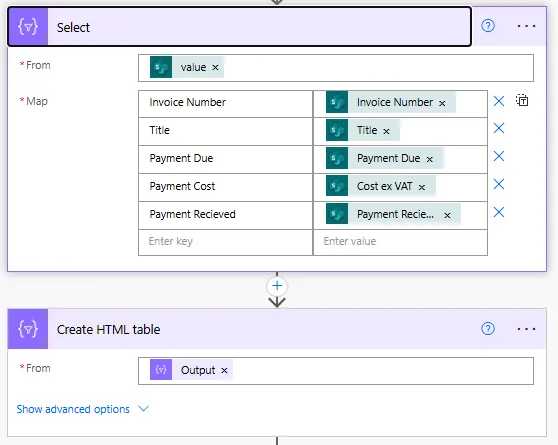
Advanced flow consolidating multiple task reminders into one email per user

Email body with HTML table:

Subject: Reminder: You have @{length(body('Filter_array'))} tasks due in 2 days

Body:
Hello,

You have the following tasks due on @{addDays(utcNow(), 2, 'dd MMMM yyyy')}:

@{body('Create_HTML_table')}

Please ensure these tasks are completed on time.

Thank you

The HTML table action automatically formats the filtered tasks into a table showing Title, Due Date, and Priority for all tasks assigned to that person.

💡 Pro Tip

For simple reminder flows where each person typically has one task at a time, use the basic Apply to each + Send email pattern. Only implement the consolidation logic if users frequently have multiple simultaneous tasks—the consolidation pattern is more complex and harder to maintain, so use it only when the user experience benefit justifies the added complexity.

Verifying Your Reminder Flow Works

Testing the flow before enabling the schedule:

1
Create test records with due dates matching your filter

Add a task to your SharePoint list with a due date exactly 2 days from now (or whatever your filter checks for).

2
Manually test the flow

Click "Test" in the flow editor → "Manually" → "Test". The flow runs immediately using the current date.

3
Check the run history

Verify that Get items returned the expected records and Apply to each sent emails to the correct recipients.

4
Check your email inbox

Confirm the reminder email arrived with correct subject, body, and dynamic content populated.

Monitoring scheduled flows:

After enabling the schedule, monitor the flow's run history regularly:

  • Check run frequency—confirm the flow runs at the expected times
  • Review successful runs—verify records are being filtered correctly
  • Investigate failures—failed runs might indicate permission issues, deleted records, or missing email addresses
  • Monitor email delivery—ask users if they're receiving reminders as expected

Common issues and solutions:

Issue Cause Solution
No records returned by Get items No records match the date filter Verify test records have due dates matching your calculation
Email action fails Missing or invalid email address Add Condition to check email is not empty before sending
Wrong reminder timing Time zone mismatch in Recurrence Set Recurrence time zone to match your business hours
Duplicate reminders sent Flow running multiple times or records not updated after reminder sent Add a "Reminder Sent" column, update it after email, filter to exclude already-reminded records
Dynamic content empty Column name mismatch or record missing data Check SharePoint column internal names match dynamic content references

Preventing duplicate reminders:

// Add a Yes/No column "ReminderSent" to SharePoint list

// Modified filter query
DueDate eq addDays(utcNow(), 2, 'yyyy-MM-dd') and ReminderSent eq false

// After sending email, update the record
Action: Update item
Item ID: Current item ID
ReminderSent: Yes

This ensures each task receives only one reminder, even if the flow runs multiple times before the due date.

⚠️ Run History Retention

Power Automate retains run history for 28 days. For scheduled flows that run daily, this gives you about one month of history to review. If you need longer-term tracking of which reminders were sent and when, log this information to a SharePoint list or Dataverse table where you can keep records indefinitely for audit or reporting purposes.

Next Steps

You now understand how to build automated email reminder flows in Power Automate using scheduled triggers, date filtering, loops, and dynamic email content. This foundation enables reliable notification systems for any time-sensitive process in your organisation.

Expand your reminder automation capabilities by exploring:

  • Escalation reminders – Send additional reminders at different intervals (7 days, 3 days, 1 day before due date)
  • Manager notifications – Alert managers when their team members' tasks are overdue
  • Adaptive Cards in Teams – Send reminders via Teams instead of email with actionable buttons
  • Multiple reminder types – Combine different reminder flows for tasks, payments, renewals in one solution
  • Reminder preferences – Let users configure their reminder timing (2 days vs 7 days notice)
  • Rich email formatting – Use HTML templates with branding, colours, and better layout
  • Reminder dashboards – Build Power BI reports showing upcoming due dates and reminder history

The Microsoft Power Automate email actions documentation provides comprehensive guidance on email formatting, troubleshooting delivery issues, and advanced email automation patterns for building professional notification systems.

Article Info
Beginner
Suitable for those new to Power Platform.
12 min read  ·  April 2025
Prerequisites
Power Automate cloud flow experience
Understanding of triggers and actions
Familiarity with SharePoint lists or Dataverse tables
Basic knowledge of date expressions

Need this built for your business?

We design and build production-grade Power Platform solutions for FM, Construction and Manufacturing businesses.

Book a Discovery Call →