
Overview
The formatDateTime expression is a function that allows you to format a date and time into a specific format. This is especially useful when you need to display or use dates and times in a certain way for your workflows, such as in emails, notifications, or folder tags.
Prerequisites
- Power Automate cloud flow experience
- Understanding of triggers and actions
- Familiarity with dynamic content
- Basic knowledge of expressions
What is formatDateTime?
In Power Automate, the formatDateTime expression is a function that allows you to format a date and time into a specific format. This is especially useful when you need to display or use dates and times in a certain way for your workflows, such as in emails, notifications, or folder tags.
For example, in Power Automate the expression utcNow() would give us an output:
Year-Month-Day-Hour-Minute-Second-Timezone-Offset
2025-03-17T09:30:00.0000000Z
However, you might want to display this date in a more readable format like "17/03/2025" or "17 March, 2025". The formatDateTime expression allows you to achieve this by specifying the exact format you need.
Basic syntax:
formatDateTime(timestamp, format)
- timestamp – The date/time value you want to format (from trigger outputs, utcNow(), or any date column)
- format – A string specifying the output format using standard date format patterns
Common use cases:
- Display dates in email subjects or bodies in UK format (dd/MM/yyyy)
- Create folder names with timestamps (yyyy-MM-dd)
- Show friendly date text like "Monday, 3 March 2025"
- Format times for display (HH:mm or hh:mm tt)
- Build file names with date stamps (yyyyMMdd_HHmmss)
Format strings are case-sensitive. "MM" (capital M) represents months (01-12), while "mm" (lowercase m) represents minutes (00-59). "dd" is day of month, "DD" is day of year. Getting these right is essential—using the wrong case will produce unexpected results in your dates and times.
Common Date Format Patterns
Here are some of the most common date formats used in Power Automate flows, particularly for UK and international business applications.
| Input | Expression | Output |
|---|---|---|
| 2025-03-17T09:30:00.0000000Z | formatDateTime('2025-03-17T09:30:00.0000000Z', 'dd/MM/yyyy') | 17/03/2025 |
| 2025-03-17T09:30:00.0000000Z | formatDateTime('2025-03-17T09:30:00.0000000Z', 'd MMMM, yyyy') | 3 March, 2025 |
| 2025-03-17T09:30:00.0000000Z | formatDateTime('2025-03-17T09:30:00.0000000Z', 'dddd, d MMMM yyyy') | Monday, 3 March 2025 |
Format pattern reference:
| Pattern | Description | Example |
|---|---|---|
| d | Day of month (1-31) | 3 |
| dd | Day of month with leading zero (01-31) | 03 |
| ddd | Abbreviated day name | Mon |
| dddd | Full day name | Monday |
| M | Month number (1-12) | 3 |
| MM | Month number with leading zero (01-12) | 03 |
| MMM | Abbreviated month name | Mar |
| MMMM | Full month name | March |
| yy | Two-digit year | 25 |
| yyyy | Four-digit year | 2025 |
Practical examples:
// UK short date format
formatDateTime(utcNow(), 'dd/MM/yyyy')
// Output: 17/03/2025
// Long date with full month
formatDateTime(utcNow(), 'dd MMMM yyyy')
// Output: 17 March 2025
// ISO 8601 format (for file names, sortable)
formatDateTime(utcNow(), 'yyyy-MM-dd')
// Output: 2025-03-17
// Full date with day name
formatDateTime(utcNow(), 'dddd, dd MMMM yyyy')
// Output: Monday, 17 March 2025
// Short format for compact display
formatDateTime(utcNow(), 'dd/MM/yy')
// Output: 17/03/25
US format typically uses MM/dd/yyyy (03/17/2025), while UK format uses dd/MM/yyyy (17/03/2025). Always specify the exact format you need rather than relying on locale defaults. Power Automate doesn't automatically adjust formats based on user location—you must explicitly define the pattern in your expression.
Common Time Format Patterns
Time formatting allows you to display hours, minutes, seconds, and AM/PM indicators in various formats suitable for different contexts.
| Input | Expression | Output |
|---|---|---|
| 2025-03-17T15:30:00.0000000Z | formatDateTime('2025-03-17T15:30:00.0000000Z', 'HH:mm') | 15:30 |
| 2025-03-17T15:30:00.0000000Z | formatDateTime('2025-03-17T15:30:00.0000000Z', 'hh:mm tt') | 03:30 PM |
| 2025-03-17T15:30:00.0000000Z | formatDateTime('2025-03-17T15:30:00.0000000Z', 'HH:mm:ss') | 15:30:00 |
Time format pattern reference:
| Pattern | Description | Example |
|---|---|---|
| H | Hour in 24-hour format (0-23) | 15 |
| HH | Hour in 24-hour format with leading zero (00-23) | 15 |
| h | Hour in 12-hour format (1-12) | 3 |
| hh | Hour in 12-hour format with leading zero (01-12) | 03 |
| m | Minutes (0-59) | 30 |
| mm | Minutes with leading zero (00-59) | 30 |
| s | Seconds (0-59) | 0 |
| ss | Seconds with leading zero (00-59) | 00 |
| tt | AM/PM designator | PM |
Practical time formatting examples:
// 24-hour time (UK standard)
formatDateTime(utcNow(), 'HH:mm')
// Output: 15:30
// 12-hour time with AM/PM
formatDateTime(utcNow(), 'hh:mm tt')
// Output: 03:30 PM
// Time with seconds
formatDateTime(utcNow(), 'HH:mm:ss')
// Output: 15:30:00
// Compact time for file names (no colons)
formatDateTime(utcNow(), 'HHmmss')
// Output: 153000
Remember: "HH" (capital H) is 24-hour format (00-23), while "hh" (lowercase h) is 12-hour format (01-12). If you use "hh" without "tt" (AM/PM indicator), times after noon will show incorrectly—15:30 becomes 03:30 with no indication it's PM. Always pair "hh" with "tt" for 12-hour formats.
Formatting Date and Time Together
Most business scenarios require both date and time displayed together—email timestamps, file creation dates, log entries, or appointment notifications.
Common combined formats:
| Input | Expression | Output |
|---|---|---|
| 2025-03-17T09:30:00.0000000Z | formatDateTime('2025-03-17T09:30:00.0000000Z', 'dd/MM/yyyy HH:mm') | 17/03/2025 09:30 |
| 2025-03-17T09:30:00.0000000Z | formatDateTime('2025-03-17T09:30:00.0000000Z', 'dd MMMM yyyy HH:mm') | 17 March 2025 09:30 |
| 2025-03-17T09:30:00.0000000Z | formatDateTime('2025-03-17T09:30:00.0000000Z', 'dddd, dd MMMM yyyy \'at\' HH:mm') | Monday, 17 March 2025 at 09:30 |
Practical combined format examples:
// Email timestamp (UK format, 24-hour)
formatDateTime(utcNow(), 'dd/MM/yyyy HH:mm')
// Output: 17/03/2025 09:30
// Friendly full format
formatDateTime(utcNow(), 'dddd, dd MMMM yyyy \'at\' HH:mm')
// Output: Monday, 17 March 2025 at 09:30
// ISO 8601 format (technical logs, APIs)
formatDateTime(utcNow(), 'yyyy-MM-ddTHH:mm:ss')
// Output: 2025-03-17T09:30:00
// File naming format (no special characters)
formatDateTime(utcNow(), 'yyyyMMdd_HHmmss')
// Output: 20250317_093000
// US format with 12-hour time
formatDateTime(utcNow(), 'MM/dd/yyyy hh:mm tt')
// Output: 03/17/2025 09:30 AM
Adding literal text to formats:
To include literal text within your format string (like "at", "on", or other words), wrap the text in single quotes:
// Include "at" between date and time
formatDateTime(utcNow(), 'dd/MM/yyyy \'at\' HH:mm')
// Output: 17/03/2025 at 09:30
// Include "on" before date
formatDateTime(utcNow(), '\'on\' dddd, dd MMMM')
// Output: on Monday, 17 March
// Complex sentence format
formatDateTime(utcNow(), '\'Created on\' dd/MM/yyyy \'at\' HH:mm')
// Output: Created on 17/03/2025 at 09:30
Without the single quotes, Power Automate interprets letters as format patterns. The word "at" would try to use "a" and "t" as format codes (which don't exist), causing errors or unexpected output.
Always wrap literal text in single quotes within format strings. If you forget the quotes around "at" in 'dd/MM/yyyy at HH:mm', Power Automate will fail or produce garbled output because it tries to interpret "a" and "t" as format codes. Even single letters need quotes if they're meant as literal text, not format patterns.
Advanced Formatting Techniques
Beyond basic patterns, you can format dates in creative ways for specific business scenarios—ordinal numbers, conditional formatting, and dynamic text based on dates.
Using conditional logic with formatDateTime:
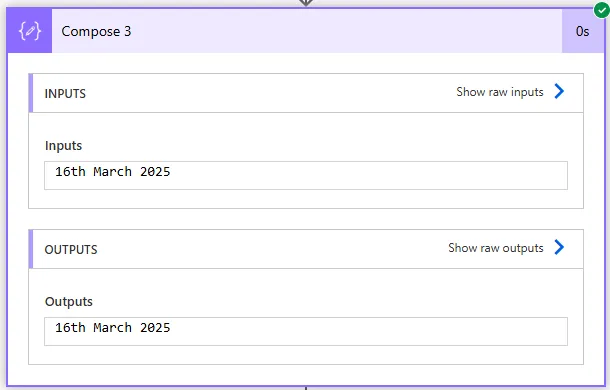
The code below checks common ordinal patterns and is better implemented as ordinal numbers. For example, a date that is 16/03/2025 you want to read 16th March 2025.
The example below checks if the month is '3' and the date '16', or '21' and '31' it would be '2nd' and so on. If not, it would say '3rd March 2025' or '22nd March 2025' if that uses case 'applied'. If none of these criteria were matched, it would say '17th' or '20th' or the string with the month and year.
// CONCEPT - Add ordinal suffix to day
formatDateTime(utcNow(), 'd')
if (equals(int(formatDateTime(utcNow(), 'd')), 1)) { '1st' }
if (equals(int(formatDateTime(utcNow(), 'd')), 21)) { '21st' }
if (equals(int(formatDateTime(utcNow(), 'd')), 31)) { '31st' }
if (equals(int(formatDateTime(utcNow(), 'd')), 2)) { '2nd' }
if (equals(int(formatDateTime(utcNow(), 'd')), 22)) { '22nd' }
if (equals(int(formatDateTime(utcNow(), 'd')), 3)) { '3rd' }
if (equals(int(formatDateTime(utcNow(), 'd')), 23)) { '23rd' }
{formatDateTime(utcNow(), 'MMMM yyyy')}
Building file names with timestamps:
When creating files or folders dynamically, include formatted dates to keep resources organised and sortable:
// Sortable file name (ISO 8601 prefix)
concat('Report_', formatDateTime(utcNow(), 'yyyy-MM-dd'), '.pdf')
// Output: Report_2025-03-17.pdf
// Detailed timestamp file name
concat('Export_', formatDateTime(utcNow(), 'yyyyMMdd_HHmmss'), '.xlsx')
// Output: Export_20250317_093000.xlsx
// Monthly archive folder
concat('Archive_', formatDateTime(utcNow(), 'yyyy-MM'))
// Output: Archive_2025-03
Dynamic email subjects with dates:
// Weekly report subject
concat('Weekly Report - ', formatDateTime(utcNow(), 'dd MMMM yyyy'))
// Output: Weekly Report - 17 March 2025
// Reminder with day name
concat('Reminder: Meeting ', formatDateTime(addDays(utcNow(), 1), 'dddd dd/MM'))
// Output: Reminder: Meeting Tuesday 18/03
// Month-end summary
concat(formatDateTime(utcNow(), 'MMMM yyyy'), ' Summary Report')
// Output: March 2025 Summary Report
Formatting dates from SharePoint or Dataverse:
When working with date columns from SharePoint lists or Dataverse tables, reference the column output and format it:
// Format SharePoint list date column
formatDateTime(items('Apply_to_each')?['DueDate'], 'dd/MM/yyyy')
// Format Dataverse date field
formatDateTime(outputs('Get_a_row_by_ID')?['body/cr6a3_completiondate'], 'dd MMMM yyyy')
// Format trigger timestamp
formatDateTime(triggerOutputs()?['body/Created'], 'dddd, dd/MM/yyyy \'at\' HH:mm')
Use ISO 8601 format (yyyy-MM-dd) for file names and folder structures. This format sorts correctly alphabetically, making it easy to find recent files when browsing folders. Files named "2025-03-17_Report.pdf" will always appear in chronological order, unlike "17-03-2025_Report.pdf" which sorts incorrectly.
Converting and Displaying Time Zones
Power Automate stores all dates in UTC (Coordinated Universal Time) by default. When displaying dates to users or creating records, you often need to convert UTC times to local time zones like GMT or BST.
Converting from UTC to local time:
Use the convertFromUtc() expression to convert UTC timestamps to a specific time zone, then format the result:
// Convert UTC to GMT/BST (London time zone)
formatDateTime(
convertFromUtc(utcNow(), 'GMT Standard Time'),
'dd/MM/yyyy HH:mm'
)
// Convert trigger time to local time
formatDateTime(
convertFromUtc(triggerOutputs()?['body/Created'], 'GMT Standard Time'),
'dd/MM/yyyy HH:mm'
)
// Display with time zone indicator
concat(
formatDateTime(
convertFromUtc(utcNow(), 'GMT Standard Time'),
'dd/MM/yyyy HH:mm'
),
' GMT'
)
Common time zone identifiers:
| Time Zone | Identifier String |
|---|---|
| UK (GMT/BST auto-adjusts) | GMT Standard Time |
| Central European Time | Central Europe Standard Time |
| Eastern Time (US) | Eastern Standard Time |
| Pacific Time (US) | Pacific Standard Time |
| Australian Eastern Time | AUS Eastern Standard Time |
Combining conversion and formatting:
// Email sent time in UK format with local time
formatDateTime(
convertFromUtc(
triggerOutputs()?['body/DateTimeReceived'],
'GMT Standard Time'
),
'dddd, dd MMMM yyyy \'at\' HH:mm'
)
// Output: Monday, 17 March 2025 at 09:30
// File name with local timestamp
concat(
'Report_',
formatDateTime(
convertFromUtc(utcNow(), 'GMT Standard Time'),
'yyyyMMdd_HHmmss'
),
'.pdf'
)
// Output: Report_20250317_093000.pdf
Why use convertFromUtc:
- UTC times can confuse end users who expect local times
- Business hours logic requires local time (9am UTC ≠ 9am GMT)
- Audit logs and timestamps should reflect user location
- Appointment scheduling needs accurate local time display
"GMT Standard Time" automatically handles British Summer Time (BST) transitions. During summer months (late March to late October), this identifier returns BST (GMT+1). During winter months, it returns GMT (GMT+0). You don't need separate identifiers for GMT vs BST—the single "GMT Standard Time" identifier adjusts automatically.
Next Steps
You now understand how to use formatDateTime to display dates and times in any format your workflows require. This expression is essential for creating professional, readable outputs in emails, file names, and user-facing notifications.
Expand your date and time manipulation skills by exploring:
- addDays(), addHours(), addMinutes() – Calculate future or past dates relative to current time or trigger dates
- startOfMonth(), startOfDay() – Get the beginning of time periods for reporting and filtering
- dayOfWeek(), dayOfYear() – Extract specific date components for conditional logic
- ticks() – Calculate differences between dates for elapsed time calculations
- convertTimeZone() – More advanced time zone conversions between any two zones
- parseDateTime() – Convert text strings to date objects when importing data from external systems
- getFutureTime(), getPastTime() – Alternative functions for date arithmetic with readable interval syntax
The Microsoft workflow expression reference for formatDateTime provides the complete format pattern specification and additional examples for complex date and time formatting scenarios.
Need this built for your business?
We design and build production-grade Power Platform solutions for FM, Construction and Manufacturing businesses.
Book a Discovery Call →