
Overview
Environment variables store configuration values that change between environments—API endpoints, email addresses, file paths, and thresholds. Using environment variables makes flows portable and eliminates the need to edit flows when promoting them through your development lifecycle.
Prerequisites
- Power Automate cloud flow experience
- Understanding of Dataverse environments
- Maker permissions in at least two environments (Dev and Test recommended)
- Basic understanding of solutions in Power Platform
What Are Environment Variables?
Environment variables are named configuration values stored in Dataverse that your flows reference instead of hard-coding. When you promote a flow from Development to Production, the flow code stays identical—only the environment variable values change.
Common use cases:
| Variable Type | Development Value | Production Value |
|---|---|---|
| SharePoint site URL | https://contoso-dev.sharepoint.com/sites/TestSite | https://contoso.sharepoint.com/sites/LiveSite |
| Notification email | dev-team@powertech365.co.uk | operations@powertech365.co.uk |
| API endpoint | https://api-dev.example.com/v1 | https://api.example.com/v1 |
| Approval threshold | 100 (test with low value) | 10000 (production threshold) |
| Document library path | /sites/TestSite/TestDocs | /sites/LiveSite/Documents |
Why use environment variables instead of hard-coding?
- Portability – Deploy the same flow to multiple environments without editing
- Maintainability – Change configuration in one place rather than updating dozens of flows
- Safety – Prevent accidental production writes from development flows
- Traceability – Configuration changes are tracked in solution history
- Role separation – Admins manage values, makers build flows
The problem environment variables solve:
Without environment variables, your invoice processing flow hard-codes the SharePoint site URL. When you export the flow from Development and import to Production, it still points to the Development SharePoint site. You must edit the flow in Production to change the URL—error-prone and time-consuming when managing hundreds of flows.
With environment variables, the flow references a variable called "SharePointSiteURL". In Development, that variable equals the dev site. In Production, it equals the production site. The flow never changes—only the variable value changes per environment.
Environment variables live in Dataverse and are packaged in solutions. When you export a solution containing flows and environment variables, the variable definitions export but the values stay behind. In the target environment, you set new values appropriate for that environment before importing the solution.
Creating an Environment Variable
Environment variables must be created within a solution—they cannot exist outside solutions. This ensures they deploy correctly across environments.
Select your Development environment from the environment picker.
Go to Solutions → select an existing solution or click + New solution. Give it a meaningful name like "Invoice Processing Solution".
Inside the solution, click + New → More → Environment variable.
Fill in Display name, Description, Data type, and Default value.
Environment variable configuration:
| Property | Example Value | Purpose |
|---|---|---|
| Display name | SharePoint Site URL | Human-readable name shown in lists |
| Schema name | cr6a3_SharePointSiteURL | Auto-generated unique identifier (includes publisher prefix) |
| Description | Base URL for invoice document library | Explains what this variable controls |
| Data type | Text | Text, Number, Yes/No, JSON, Data source (connector reference) |
| Default value | https://contoso-dev.sharepoint.com/sites/Invoices | Value used in Development environment |
Supported data types:
| Data Type | Use For | Example |
|---|---|---|
| Text | URLs, email addresses, file paths, any string value | https://api.example.com/v1 |
| Number | Thresholds, limits, counts, IDs | 10000 |
| Yes/No | Feature flags, enable/disable switches | Yes (enable notifications) |
| JSON | Complex configuration objects, arrays, structured data | {"timeout": 30, "retries": 3} |
| Data source | Connector references (SharePoint site, SQL connection) | Reference to specific SharePoint connection |
Use descriptive, unambiguous names that indicate what the variable controls. "SharePoint Site URL" is better than "URL". "Invoice Approval Threshold" is better than "Threshold". Future you (and your colleagues) will thank you when managing 50+ environment variables across solutions.
Referencing Environment Variables in Power Automate
Once created, environment variables appear in the dynamic content picker under "Environment Variables". You reference them exactly like any other dynamic content.
Example: Using SharePoint site URL variable
For example, "Create file" from SharePoint connector.
The dynamic content panel opens on the right.
Find and select "SharePoint Site URL".
At runtime, Power Automate resolves this to the actual value stored in the current environment.
Using environment variables in expressions:
You can combine environment variables with expressions for more complex scenarios:
concat(
  outputs('Get_Environment_Variable')?['body/value'],
  '/Shared Documents/Invoices'
)
This concatenates the SharePoint site URL variable with a relative path to build the complete document library URL.
Setting Environment-Specific Values
When you export a solution containing environment variables and import it to a new environment, the variable definitions come across but the values do not. This is by design—you set appropriate values for each environment.
Deployment workflow:
Go to Solutions → select your solution → Export. The environment variable definition exports with default value.
Switch to Test environment → Solutions → Import → select your exported solution file.
Import wizard prompts for environment variable values. Enter Test-specific values (test SharePoint site, test email addresses, etc.).
Flows in the solution now reference the Test environment values automatically.
Updating values in an existing environment:
Solutions → select solution → view environment variables.
Opens the variable details panel.
Enter the new value and save.
No need to republish or edit flows—the change takes effect on the next flow run.
Document your environment variable values in a spreadsheet or wiki. When promoting solutions, you'll need to know what value belongs in each environment. Example: SharePoint Site URL → Dev: https://contoso-dev..., Test: https://contoso-test..., Prod: https://contoso.sharepoint.com...
Data Source Environment Variables
Data source variables store references to connections—SharePoint sites, SQL databases, custom connectors. Instead of selecting "Enter custom value" and typing a URL, flows reference the data source variable which points to the correct environment-specific connection.
Creating a data source variable:
Set Data type to "Data source".
Choose SharePoint, SQL Server, or other connector the variable will reference.
Select the SharePoint site (or SQL database, etc.) for the Development environment.
In SharePoint actions, instead of typing the site URL, select the data source variable from dynamic content.
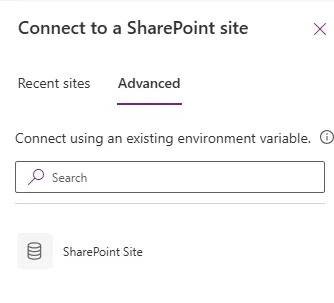
Benefits of data source variables:
- No manual URL typing—select from connection picker
- Validates connection exists before flow runs
- Updates automatically if site URL changes
- Works with any connector supporting parameterisation (SharePoint, SQL, Dataverse, HTTP)
Using JSON for Complex Configuration
JSON environment variables store structured configuration objects—arrays, nested properties, multiple related settings. This eliminates creating dozens of individual variables for complex scenarios.
Example JSON variable for email notification settings:
{
  "recipients": {
    "approvals": "approvals@powertech365.co.uk",
    "failures": "ops@powertech365.co.uk",
    "daily_report": "management@powertech365.co.uk"
  },
  "thresholds": {
    "high_value": 10000,
    "auto_approve": 500,
    "escalation_hours": 24
  },
  "features": {
    "send_sms": false,
    "enable_teams": true,
    "cc_manager": true
  }
}
Accessing JSON values in flows with expressions:
// Get approvals email address
outputs('Get_Config')?['body/value']?['recipients']?['approvals']

// Get high value threshold
outputs('Get_Config')?['body/value']?['thresholds']?['high_value']

// Check if Teams notifications enabled
outputs('Get_Config')?['body/value']?['features']?['enable_teams']
When to use JSON variables:
| Scenario | Why JSON is Better | Alternative (Worse) |
|---|---|---|
| Multiple related email addresses | One variable, logically grouped | Six separate text variables |
| API configuration (endpoint, timeout, retry count) | Single config object | Three text/number variables |
| Feature flags (10+ enable/disable switches) | One JSON with boolean properties | Ten Yes/No variables |
| Regional settings (date format, currency, timezone) | Grouped by region in one variable | Separate variables per region |
JSON must be valid—no trailing commas, strings in double quotes, booleans lowercase (true/false not True/False). Use a JSON validator before saving. Invalid JSON causes flows to fail at runtime with cryptic parsing errors.
Next Steps
You now understand how to create environment variables, reference them in flows, and manage values across Development, Test, and Production environments. This eliminates hard-coded configuration and makes your Power Automate solutions portable and maintainable.
Continue building robust automation solutions by exploring:
- Connection references – Similar to environment variables but specifically for managing connector authentication across environments
- Solutions and ALM – Package flows, environment variables, and connection references together for deployment
- Deployment pipelines – Automate solution promotion from Dev → Test → Production
- Azure Key Vault integration – Store secrets (API keys, passwords) in Key Vault and reference them via environment variables
- Git source control for solutions – Version control your Power Platform solutions including environment variable definitions
The official Microsoft environment variables documentation provides advanced guidance on JSON schema validation, connection references, and enterprise ALM patterns.
Need Power Automate built properly?
We design and deliver production-grade Power Automate workflows for FM, construction, and manufacturing businesses across the UK.
Explore Power Automate →Need a Dataverse environment built properly?
We design and deliver scalable Dataverse data models for FM, construction, and manufacturing businesses across the UK.
Explore Dataverse →