
Overview
Dataverse lookup columns create relationships between tables, allowing one table to reference records in another table. In Power Automate, working with lookups requires understanding entity set names versus logical names, using the correct syntax to retrieve lookup values, and properly formatting lookup references when creating or updating records.
Prerequisites
- Power Automate cloud flow experience
- Understanding of Dataverse tables and columns
- Familiarity with dynamic content and expressions
- Basic knowledge of JSON structure
Understanding Dataverse Lookups
When using dataverse you will eventually come across a need to use power automate with lookup columns, this can be quite daunting at first as it's not immediately obvious how to work with them, however this post will show how easy it is to update the lookup column in power automate.
What are lookup columns?
Lookup columns establish relationships between Dataverse tables. For example, a "Contact" table might have a lookup to the "Account" table, indicating which company the contact works for. The lookup stores a reference (GUID) to the related record rather than duplicating data.
Common lookup scenarios in Power Automate:
- Creating a new contact record with a lookup to their associated account
- Updating an order record to reference the assigned user
- Retrieving the account name from a contact's account lookup
- Filtering records based on lookup values
- Setting owner or regarding lookups for activities
Why lookups are challenging in Power Automate:
- Dataverse uses different names for the same table depending on context (entity set name vs logical name)
- Lookup values require specific JSON structure when creating/updating records
- Retrieving lookup data requires expressions, not just dynamic content picker
- Navigation properties use plural names that aren't always obvious
Dataverse lookup columns store only the GUID (unique identifier) of the related record. When you retrieve a record with a lookup, Power Automate doesn't automatically fetch the related record's details—you only get the GUID. To access properties like name or email from the related record, you need to either expand the lookup using $expand in the Get row action or perform a separate Get row to retrieve the related record.
Setting Up a Flow with Lookup Columns
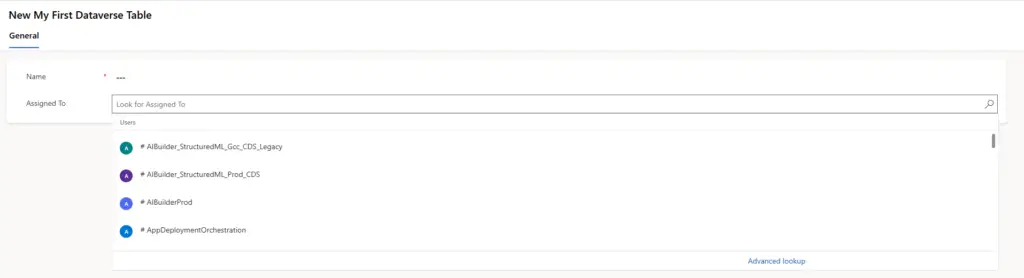
In this example we'll have a users table with a column called "Assigned To" meant for this column so we can see below has a lookup to the 'Users' table. This is a common one which most developers know, but the principles still apply to all lookups.
Example flow structure:
For this example we are simply going to update the 'Assigned To' in the Power Automate Flow with the user that has modified the record. When we add a new row we can see that the 'Assigned To' column text 'Users' this means there is a lookup to the users table.
Trigger: When a row is added, modified, or deleted
Table: Tasks (or your custom table)
Trigger condition: When a row is modified

Action: Update a row
Table: Tasks
Row ID: (triggering record's ID)
Assigned To: (User who modified the record)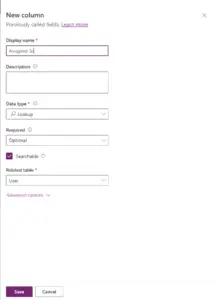
When you click on the "Assigned To" field in the Update a row action, you'll notice it says "Users" and shows a dropdown. This indicates the field expects a lookup value (entity reference) to the Users table, not just a text value like a name or email address.
Understanding what the lookup field needs:
Dataverse lookup columns require the GUID of the related record. You cannot simply enter "John Smith" or "john.smith@company.com"—you must provide the unique identifier (GUID) of the user record in the format Dataverse expects.
When you open the dynamic content picker for a lookup field, you'll see "Users" but clicking it doesn't populate the field correctly. This is because the dynamic content picker shows the field name, not the actual GUID value. To properly set a lookup, you need to use expressions to access the GUID or use the correct entity reference format shown in the following sections.
Getting Lookup Values: Entity Set Name Approach
To update the record we first need the 'Entity Set Name'. We can get this a few different ways, first we need to go in the table the lookup value is pointing at, in this case it's 'Users' table. If we go to tools and select 'API link to table definition'.
There are two key names you need to understand when working with Dataverse lookups:
- Entity Set Name – The plural name used in API calls and lookup references (e.g., "systemusers" for Users)
- Logical Name – The singular name used in some contexts (e.g., "systemuser" for User)
Method 1: Finding the Entity Set Name via API link
Go to the table that the lookup points to—not the table containing the lookup column.
This opens a menu showing various API-related names for the table.
The entity set name appears in the list. For the Users table, this is "systemusers".
This will open a new tab with API tools for the table, here we simply need to search for 'EntitySetName', this will show the name as 'systemusers'.
// Entity Set Name for common system tables
Users: systemusers
Teams: teams
Accounts: accounts
Contacts: contacts
Opportunities: opportunities
Using the Entity Set Name in the lookup expression:
Once you have the entity set name, you construct the lookup value using this format:
// Format for lookup value
/EntitySetName(GUID)

// Example for Users lookup
/systemusers(a7b3c5e2-1234-5678-90ab-cdef12345678)
Complete expression for "Assigned To" lookup:
// Update a row action - Assigned To field
concat('/systemusers(', triggerOutputs()?['body/systemuserid'], ')')
This expression:
- Starts with `/systemusers(` (forward slash, entity set name, opening parenthesis)
- Inserts the GUID of the user who modified the record
- Ends with closing parenthesis `)`
The forward slash at the start of the lookup value is critical—forgetting it causes the update to fail with an error like "Invalid entity reference". The format must be exactly `/entitysetname(guid)` with the forward slash, parentheses, and no spaces. Copy this format precisely when building lookup expressions.
Alternative Method: Copy as Name from Tools
There is another way to get the Entity Set Name Microsoft have recently added 'Copy as name' to the tools menu. This now makes it super easy to get the entity set name Microsoft.
Go to the table that the lookup references (e.g., Users table).
This instantly copies the entity set name to your clipboard.
The entity set name is now on your clipboard ready to use in concat() expressions.
You may notice in most cases the value is usually the table name with an 's' on the end, however this is not always the case for example if the table name ends in 's' it will add 'es' to the end. Also custom tables have a special prefix which will be different for each environment so always make sure to use the Solution name. In my example my orders table is 'cr_orders' as my publisher prefix is 'cr_'.
Entity set name patterns:
| Table Display Name | Entity Set Name | Pattern |
|---|---|---|
| User | systemusers | Irregular (system table) |
| Account | accounts | Display name + 's' |
| Address | addresses | Display name ending in 's' + 'es' |
| Order (custom) | cr_orders | Publisher prefix + name + 's' |
| Task (custom) | cr_tasks | Publisher prefix + name + 's' |
Now that we have the entity set name we use this in our lookup value surrounded by "/" and "()" like the select table / in insert name you can see dynamic content so get a value is shown below. I have used the modified value from the previous action.
Example expressions for different tables:
// System User lookup (Assigned To)
concat('/systemusers(', triggerOutputs()?['body/systemuserid'], ')')

// Account lookup (Parent Account)
concat('/accounts(', variables('varAccountID'), ')')

// Custom table lookup (Related Order)
concat('/cr_orders(', outputs('Get_order')?['body/cr_orderid'], ')')Custom table entity set names include your solution's publisher prefix (e.g., cr_orders, contoso_orders). When you import a solution into a different environment with a different publisher prefix, the entity set name changes. This breaks hard-coded lookup expressions. Always use the "Copy set name" tool rather than guessing or hard-coding names to avoid import failures.
Populating Lookup Fields in Power Automate
Step-by-step for setting a lookup value:
Use Tools → Copy set name on the table the lookup points to (e.g., "systemusers" for Users).
This comes from trigger outputs, a Get row action, or a variable containing the GUID.
Don't use the dynamic content picker—it won't work for lookups. Click "Expression" tab instead.
Format: concat('/entitysetname(', guidExpression, ')')
The field shows the expression, not the resolved value—this is expected.
Common expressions for different GUID sources:
// From trigger (modified by user)
concat('/systemusers(', triggerOutputs()?['body/modifiedby'], ')')

// From trigger (created by user)
concat('/systemusers(', triggerOutputs()?['body/createdby'], ')')

// From variable
concat('/accounts(', variables('varAccountID'), ')')

// From previous Get row action
concat('/contacts(', outputs('Get_contact')?['body/contactid'], ')')

// From Apply to each current item
concat('/cr_products(', items('Apply_to_each')?['productid'], ')')
Setting multiple lookup fields:
// Update a row with multiple lookups
Table: Orders
Row ID: triggerOutputs()?['body/orderid']

Customer (lookup to Contacts):
concat('/contacts(', variables('varContactID'), ')')

Assigned To (lookup to Users):
concat('/systemusers(', variables('varAssignedUserID'), ')')

Related Account (lookup to Accounts):
concat('/accounts(', outputs('Get_account')?['body/accountid'], ')')Test your lookup expressions by examining the flow run history after execution. In the Update a row action's outputs, you can see the exact value sent to Dataverse. If the lookup didn't populate correctly, the run history shows whether the GUID was empty, malformed, or pointing to a non-existent record, helping you debug expression issues quickly.
Reading Data from Lookup Columns
The challenge with retrieving lookup data:
When you use "Get a row" or trigger on a record with lookup columns, Power Automate only retrieves the GUID of the related record—not the related record's properties like name or email. To access those properties, you have two options:
Option 1: Expand the lookup in the query
Use the "Expand Query" parameter in Get a row to fetch related record data in the same action:
Action: Get a row by ID
Table: Contacts
Row ID: (contact GUID)
Expand Query: parentcustomerid($select=name,accountnumber)

// Returns contact record with account name and number included
The expand query uses the lookup column's logical name (not the field display name) and specifies which columns to retrieve from the related record.
Finding the logical name for expand queries:
- Go to the table containing the lookup column
- Click on the lookup column
- Look for "Name" field—this is the logical name (e.g., "parentcustomerid")
- Use this in the Expand Query parameter
Accessing expanded lookup data:
// After Get a row with Expand Query
outputs('Get_contact')?['body/parentcustomerid/name']
outputs('Get_contact')?['body/parentcustomerid/accountnumber']
outputs('Get_contact')?['body/parentcustomerid/emailaddress1']
Option 2: Perform a separate Get a row
Retrieve the lookup GUID from the first record, then use it to get the related record:
1. Action: Get a row (Contact)
   Returns: Contact record with account lookup GUID

2. Action: Get a row (Account)
   Table: Accounts
   Row ID: outputs('Get_contact')?['body/_parentcustomerid_value']

   // The _value suffix accesses the GUID from lookup
This approach requires two actions but is clearer when you need many columns from the related record.
Lookup GUID property naming pattern:
When accessing the GUID from a lookup column in outputs, add '_value' suffix to the logical name:
// Lookup column: parentcustomerid
// GUID property: _parentcustomerid_value

// Lookup column: ownerid (Owner)
// GUID property: _ownerid_value

// Lookup column: cr_assignedto (custom)
// GUID property: _cr_assignedto_value
The underscore prefix and `_value` suffix surround the logical name to access the GUID.
Expand queries are more efficient than separate Get row actions—one API call instead of two. However, expanding multiple lookups in a single query can slow performance. Only expand the lookups you actually need data from, and only select the specific columns required rather than retrieving all columns from the related table using $select.
Next Steps
You now understand how to work with Dataverse lookup columns in Power Automate, including finding entity set names, constructing lookup values with concat expressions, and retrieving related record data using expand queries or separate Get row actions.
Expand your Dataverse integration capabilities by exploring:
- Polymorphic lookups – Working with lookups that can reference multiple table types (e.g., Customer lookup to Account or Contact)
- Filter queries with lookups – Using List rows with filter conditions on lookup columns
- Many-to-many relationships – Associating and disassociating records in N:N relationships
- Rollup and calculated fields – Understanding how lookup-based calculations work in flows
- Lookup column security – How field-level security affects lookup visibility in Power Automate
- Choice columns vs lookups – When to use option sets instead of lookup relationships
- Regarding lookups – Working with activity entity regarding fields that can point to multiple table types
The Microsoft Power Automate Dataverse connector documentation provides comprehensive guidance on working with relationships, expand queries, filter expressions, and advanced Dataverse integration patterns for building robust automation solutions.
Need Power Automate built properly?
We design and deliver production-grade Power Automate workflows for FM, construction, and manufacturing businesses across the UK.
Explore Power Automate →Need a Dataverse environment built properly?
We design and deliver scalable Dataverse data models for FM, construction, and manufacturing businesses across the UK.
Explore Dataverse →