
Overview
Dataverse lookup columns can be tricky to clear in Power Automate because setting them to blank or empty text doesn’t work—you must explicitly set them to null. Using the empty() expression with conditional logic, you can check if a lookup value exists and either pass the GUID or null depending on whether the lookup should be populated or cleared.
Prerequisites
- Power Automate cloud flow experience
- Understanding of Dataverse lookup columns
- Familiarity with expressions and dynamic content
- Basic knowledge of Update a row actions
The Lookup Null Value Challenge
Dataverse Lookups can be tricky in Power Automate, and even more so when updating multiple records and one of the values is blank. In this post we will show how to update a Dataverse Lookup with a blank value.
Common scenarios requiring null lookup values:
- Unassigning a task from a user (clearing the "Assigned To" lookup)
- Removing a parent account relationship from a contact record
- Clearing an optional lookup when a related record is deleted
- Resetting a lookup during status changes or workflow transitions
- Importing data where some lookup values should be empty
Why you can't just use empty text:
Unlike text columns where you can set a value to "" (empty string), lookup columns require a specific GUID reference or null. Attempting to set a lookup to empty text, blank, or omitting it entirely causes errors.
Dataverse lookup columns store entity references (GUIDs) or null—nothing else. Setting a lookup to empty string "", blank, or leaving it unpopulated in an Update a row action doesn't clear the lookup—it either keeps the existing value or throws an error. To explicitly clear a lookup, you must set it to the null value using the empty() expression or the null keyword.
Understanding the EntitySetName Error
When adding or updating a dataverse record with a lookup you have the pass through the table EntitySetName in which your getting the GUID from, when you try and update a record with a null value you may come across the below error when you run the flow.
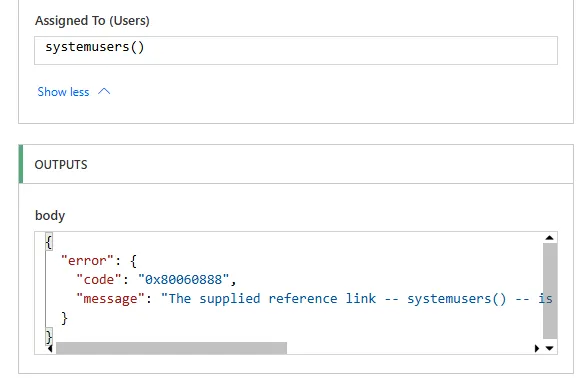
The error details:
Status: 400
Body:
{
"error": {
"code": "InvalidLookupReference",
"message": "The specified reference line - systemuserid"
}
}
This error occurs when Power Automate tries to set a lookup column but receives an invalid or empty value that isn't properly formatted as null. The Dataverse API expects either:
- A valid entity reference:
/systemusers(guid-value) - Explicit null to clear the lookup
Passing an empty string, blank, or malformed reference causes the InvalidLookupReference error.
Common mistakes that cause this error:
| Mistake | What You Tried | Result |
|---|---|---|
| Empty string | Set lookup field to "" | InvalidLookupReference error |
| Leaving field blank | Don't populate lookup field in Update a row | Existing value retained, not cleared |
| Just the GUID without format | Set lookup to guid-value without /entitysetname() | InvalidLookupReference error |
| Empty concat() | concat('/systemusers(', '', ')') | /systemusers() with no GUID - error |
In Add a new row actions, leaving a lookup field unpopulated creates the record with that lookup set to null (empty). However, in Update a row actions, leaving a lookup field unpopulated keeps the existing value—it doesn't clear it. To explicitly clear a lookup in an update, you must set it to null using the method shown in this article.
The Solution: Conditional Null Assignment
To fix this we need to first check if we are actually passing a GUID or not first to do this we can use the Empty() expression. We also need to make sure if the GUID is empty that we are not including the EmtySetName as this is what brings up that error.
For this to work we can use Concat expression. If the GUID is empty enter null value otherwise we want to type in the EmtySetName followed by the GUID of the record.
The complete solution expression:
if(
empty(outputs('List_rows_2')?['body/value']?[0]?['systemuserid']),
null,
concat('/systemusers(',outputs('List_rows_2')?['body/value']?[0]?['systemuserid'],')')
)
Breaking down the expression:
- if() – Conditional logic: if condition is true, return first value; if false, return second value
- empty() – Checks if the GUID value is empty/null/blank
- null – If GUID is empty, set lookup to null (clears the lookup)
- concat() – If GUID exists, build proper lookup reference format /entitysetname(guid)
Alternative simplified syntax:
if(
empty(outputs('List_rows_2')?['body/value']?[0]?['systemuserid']),
null,
concat('/systemusers(',outputs('List_rows_2')?['body/value']?[0]?['systemuserid'],')')
)
Or
if(
empty(outputs('List_rows_2')?['body/value']?[0]?['systemuserid']),
null,
concat('/systemusers(',outputs('List_rows_2')?['body/value']?[0]?['systemuserid'],')')
)
How it works in practice:
| Scenario | GUID Value | empty() Result | Expression Returns |
|---|---|---|---|
| GUID exists | a7b3c5e2-1234-5678-90ab-cdef12345678 | false | /systemusers(a7b3c5e2-1234-5678-90ab-cdef12345678) |
| GUID is empty | null or "" | true | null |
| GUID not found | undefined | true | null |
Applying this to Update a row:
Action: Update a row
Table: Tasks
Row ID: (record to update)
Assigned To (lookup field):
if(
empty(variables('varUserGUID')),
null,
concat('/systemusers(', variables('varUserGUID'), ')')
)
This expression checks the variable containing the user GUID. If the variable is empty, the lookup is set to null (cleared). If the variable contains a GUID, the lookup is set to that user.
The null keyword in Power Automate expressions is case-sensitive and must be lowercase. Using Null or NULL will cause expression errors. When typing null in expressions, ensure it's exactly "null" with no quotes around it—null is a special value, not a text string.
Verifying the Lookup Clears Successfully
The Result:
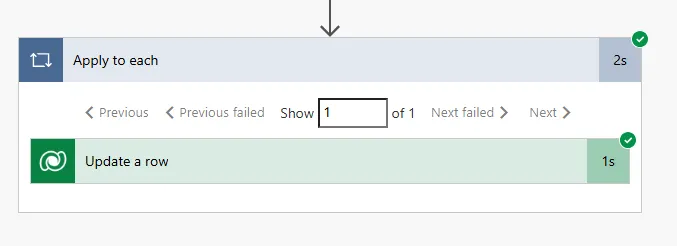
Confirming the lookup was cleared:
Open the successful run and examine the Update a row action's inputs. You should see the lookup field showing "null" in the request body.
Navigate to the table in Power Apps and open the record. The lookup field should be empty (no value selected).
If you retrieve the record in another flow, the lookup GUID property (_lookupname_value) will be null or undefined.
Viewing null lookup in flow run outputs:
// Update a row action inputs showing null lookup
{
"cr_assignedto@odata.bind": null,
"cr_name": "Updated Task Name",
"cr_status": 100000
}
// Get row action outputs after lookup cleared
{
"cr_taskid": "abc-123-def",
"cr_name": "Updated Task Name",
"_cr_assignedto_value": null
}
Common verification checks:
- Flow run shows green checkmark (succeeded status)
- No InvalidLookupReference error in run history
- Update a row inputs show "null" for the lookup field (not "" or blank)
- Record in Dataverse shows lookup field as empty when viewed
- Subsequent Get row returns null for the lookup GUID property
Testing both scenarios:
Create two test cases to verify your expression works correctly:
| Test Case | Setup | Expected Result |
|---|---|---|
| Clear existing lookup | Record has lookup populated, GUID variable is empty | Lookup clears to null, no error |
| Set lookup value | Record has empty lookup, GUID variable contains valid GUID | Lookup populates with reference, no error |
| Keep existing lookup | Record has lookup populated, GUID variable contains same GUID | Lookup unchanged, no error |
| Change lookup value | Record has lookup to User A, GUID variable contains User B's GUID | Lookup updates to User B, no error |
When verifying the lookup was cleared in Power Apps or model-driven apps, refresh the record view or close and reopen the form. Browser caching can show stale data, making it appear the lookup wasn't cleared when it actually was. Always refresh after running the flow to see the current database state.
Handling Multiple Lookups in One Update
Updating multiple lookup fields with conditional null logic:
Action: Update a row
Table: Contacts
Row ID: (contact to update)
Parent Account (lookup):
if(
empty(variables('varAccountGUID')),
null,
concat('/accounts(', variables('varAccountGUID'), ')')
)
Primary Contact (lookup):
if(
empty(variables('varContactGUID')),
null,
concat('/contacts(', variables('varContactGUID'), ')')
)
Owner (lookup):
if(
empty(variables('varOwnerGUID')),
null,
concat('/systemusers(', variables('varOwnerGUID'), ')')
)
Each lookup field independently checks if its corresponding GUID variable is empty and either sets to null or builds the proper entity reference.
Variation: Using trigger outputs instead of variables:
// From trigger body
if(
empty(triggerOutputs()?['body/assigneduser']),
null,
concat('/systemusers(', triggerOutputs()?['body/assigneduser'], ')')
)
// From previous Get row action
if(
empty(outputs('Get_account')?['body/_primarycontactid_value']),
null,
concat('/contacts(', outputs('Get_account')?['body/_primarycontactid_value'], ')')
)
// From Apply to each current item
if(
empty(items('Apply_to_each')?['managerid']),
null,
concat('/systemusers(', items('Apply_to_each')?['managerid'], ')')
)
Variation: Using coalesce() for default fallback:
// If primary GUID is empty, try secondary GUID, otherwise null
if(
empty(coalesce(variables('varPrimaryGUID'), variables('varSecondaryGUID'))),
null,
concat('/systemusers(', coalesce(variables('varPrimaryGUID'), variables('varSecondaryGUID')), ')')
)
This pattern tries the primary GUID first, falls back to secondary GUID if primary is empty, and only sets to null if both are empty.
Variation: Clearing all lookups in a batch update:
// Apply to each - Clear assigned user for all records
Items: outputs('List_rows')?['body/value']
Update a row:
Row ID: items('Apply_to_each')?['taskid']
Assigned To:
null
// Directly setting to null when you know all should be cleared
When you know for certain that all records should have their lookups cleared, you can set directly to null without the if() conditional check.
Variation: Polymorphic lookups (Customer, Regarding):
// Customer field can point to Account or Contact
if(
empty(variables('varCustomerGUID')),
null,
if(
equals(variables('varCustomerType'), 'account'),
concat('/accounts(', variables('varCustomerGUID'), ')'),
concat('/contacts(', variables('varCustomerGUID'), ')')
)
)
Polymorphic lookups require nested if() logic to determine which entity set name to use based on the record type.
Store the if(empty()...) expression pattern as a Compose action with a descriptive name like "Format Lookup or Null". Reference this Compose output multiple times instead of repeating the expression in every lookup field. This makes flows more readable and easier to maintain—update the logic once in the Compose action rather than editing multiple field expressions.
Real-World Scenarios for Null Lookup Values
Scenario 1: Unassigning tasks when user leaves
Trigger: When a row is modified (Users table)
Condition: Status equals "Inactive"
List rows: Get all tasks assigned to this user
Filter: _assignedto_value eq (triggering user GUID)
Apply to each: Task
Update a row:
Table: Tasks
Row ID: Current task ID
Assigned To: null
// Clears assignment from all tasks when user deactivated
Scenario 2: Clearing lookups during import/migration
// Excel row has optional Manager column
Apply to each: Excel row
Update a row (Dataverse):
Employee Name: Excel Name
Manager:
if(
empty(items('Apply_to_each')?['ManagerEmail']),
null,
concat('/systemusers(', outputs('Get_manager_by_email')?['body/systemuserid'], ')')
)
// Only sets manager if email provided in Excel
Scenario 3: Optional relationship based on status
Trigger: When a row is added or modified (Orders)
Condition: Order Status equals "Cancelled"
If yes:
Update a row:
Row ID: Triggering order ID
Assigned Sales Rep: null
Primary Contact: null
If no:
// Keep existing lookups or set based on logic
// Clears relationships when order cancelled
Scenario 4: Conditional lookup based on form input
Trigger: PowerApps (from canvas app)
Inputs:
- TaskName (text)
- AssignToUser (yes/no)
- SelectedUserGUID (text)
Add a new row:
Table: Tasks
Name: TaskName parameter
Assigned To:
if(
equals(AssignToUser, false),
null,
concat('/systemusers(', SelectedUserGUID, ')')
)
// Sets lookup only if user chose to assign
Scenario 5: Clearing parent relationship when parent deleted
Trigger: When a row is deleted (Accounts)
List rows: Get all contacts with this account as parent
Filter: _parentcustomerid_value eq (deleted account GUID)
Apply to each: Contact
Update a row:
Row ID: Current contact ID
Parent Customer: null
// Prevents orphaned lookup references
Check your Dataverse table schema before setting lookups to null. If a lookup column is marked as "Business Required" in the table definition, you cannot set it to null—the update will fail with a validation error. Required lookups must always have a value. Only optional lookups can be cleared using the null method shown in this article.
Next Steps
You now understand how to properly set Dataverse lookup columns to null in Power Automate using the if(empty()...) conditional expression pattern. This enables you to clear lookup relationships, handle optional lookups in imports, and manage dynamic lookup assignments based on workflow logic.
Expand your Dataverse lookup manipulation capabilities by exploring:
- Polymorphic lookup handling – Working with Customer and Regarding lookups that can reference multiple table types
- Cascade delete behaviour – Understanding how clearing lookups interacts with relationship cascade rules
- Batch clearing lookups – Efficiently clearing lookups across hundreds of records using List rows and Apply to each
- Lookup validation patterns – Checking if referenced records exist before setting lookup values
- Owner assignment – Special considerations for the Owner lookup which has different syntax requirements
- Audit trail for cleared lookups – Logging when and why lookups were cleared for compliance
- Rollup field impact – How clearing parent lookups affects calculated rollup columns
The Microsoft Power Automate Dataverse Update actions documentation provides comprehensive guidance on working with lookups, relationship types, and advanced update patterns for building robust Dataverse integration flows.
Need this built for your business?
We design and build production-grade Power Platform solutions for FM, Construction and Manufacturing businesses.
Book a Discovery Call →