
Image Preview
1 / 1
HomeLearnConditions vs Expressions in Power Automate: When to Use Each for Flow Logic
⚡ IntermediateDataversePower Automate9 min readMarch 2025

Conditions vs Expressions in Power Automate: When to Use Each for Flow Logic

Learn the difference between conditions and expressions in Power Automate, when to use each approach, and how to build dynamic flow logic. This guide covers condition syntax, expression functions, and practical examples for both techniques to help you build smarter, more flexible automations.

RL
Rob Lees
Founder & Principal Consultant
Share

Overview

Conditions and expressions are two distinct ways to add logic to Power Automate flows. Conditions use visual controls for branching, while expressions use formula-based logic to transform data. Understanding when to use each approach is essential for building efficient, maintainable flows.

Prerequisites

  • Power Automate cloud flow experience
  • Understanding of flow triggers and actions
  • Familiarity with dynamic content
  • Basic understanding of data types (text, numbers, dates)

What Are Conditions and Expressions?

Power Automate offers two primary ways to add logic to your flows: conditions for visual decision-making, and expressions for formula-based data manipulation.

Conditions:

  • A Condition is a graphical control that evaluates a specific comparison (is equal to, contains, is greater than) and creates two branches: "If yes" and "If no". You use conditions when you need different actions based on those outcomes.
  • Visual, no-code approach accessible to everyone
  • Example: "If the variable = TRUE send an email"
  • Can route to an infinite number of simultaneous branches

Expressions:

  • An Expression is a more flexible, formula-based approach that allows you to write logic using functions and operators. Expressions can be Power Automate's version of Excel formulas. You can use them to construct new values from dynamic content and to add booleans based on those conditions.
  • Code-like syntax for complex calculations and data transformations
  • Example: concat(variables('FirstName'),' ',variables('LastName'))
  • Enable far more advanced logic and string manipulation
  • Capable of running within prior parameters
💡 Key Concept

Think of conditions as multiple-choice questions and expressions as maths equations. Conditions ask "Is this true or false?" and route your flow accordingly. Expressions calculate "What value should this be?" and transform data before you use it. You'll often use both in the same flow—expressions to prepare data, conditions to make decisions.

When to Use Conditions

Use conditions when you need to route your flow down different paths based on whether something is true or false. Conditions are ideal for straightforward yes/no decisions.

Common condition scenarios:

Scenario Condition Check If Yes Action If No Action
Email approval Approval outcome is equal to "Approve" Create SharePoint file Send rejection email
Invoice processing Amount is greater than 10000 Request manager approval Auto-approve and proceed
File validation Filename contains "FINAL" Move to archive folder Leave in drafts
Status routing Status is equal to "Urgent" Send Teams alert immediately Add to daily summary email
Date checking Due date is less than today Mark overdue, escalate Continue normal processing

Building a condition step by step:

1
Add a new step and search for "Condition"

Select Condition from the Control connector.

2
Click in the first field and add dynamic content

Select the value you want to evaluate (e.g., Approval outcome, Amount, Status).

3
Choose your operator

Select from operators like is equal to, is greater than, contains, starts with.

4
Enter the comparison value

Type the value to compare against, or use dynamic content.

5
Add actions to the "If yes" and "If no" branches

Click Add an action inside each branch to define what happens in each scenario.
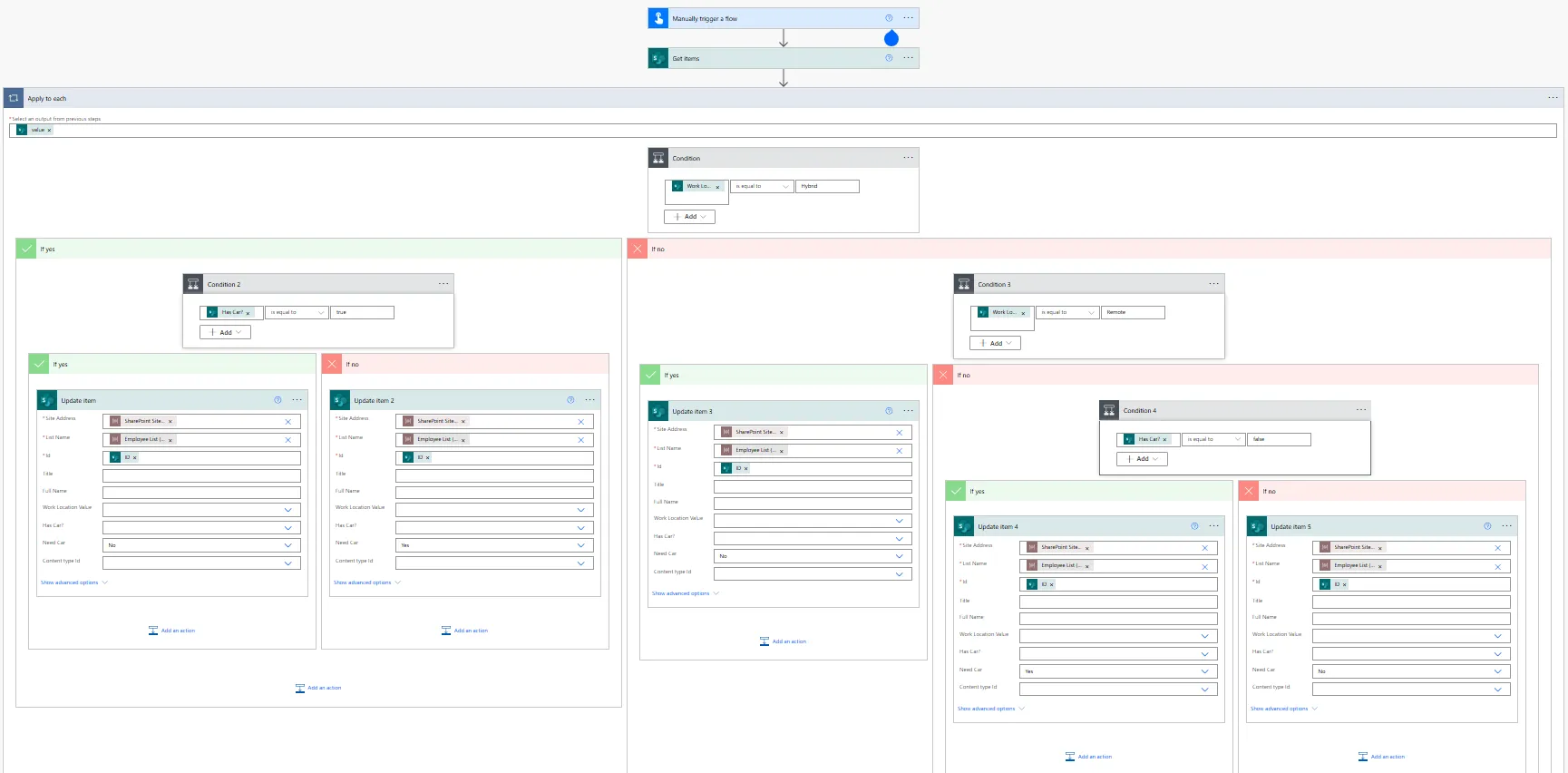
Condition structure with operator selection and branching logic

Available comparison operators:

Operator Use Case Example
is equal to Exact match comparison Status is equal to "Completed"
is not equal to Inverse match Priority is not equal to "Low"
is greater than Numeric or date comparison Amount is greater than 1000
is greater than or equal to Inclusive threshold Score is greater than or equal to 80
is less than Below threshold Stock level is less than 10
is less than or equal to Inclusive lower bound Age is less than or equal to 18
contains Partial text match Subject contains "Invoice"
does not contain Text exclusion Body does not contain "Spam"
starts with Prefix matching Filename starts with "DRAFT-"
ends with Suffix matching Email ends with "@powertech365.co.uk"
⚠️ Multiple Conditions

Click "Add" within a condition to create AND/OR groups. AND requires all conditions to be true. OR requires any condition to be true. For example: "Amount > 5000 AND Status = Pending" ensures both criteria must match before the Yes branch executes.

When to Use Expressions

Use expressions when you need to transform, calculate, or manipulate data dynamically. Expressions execute inline—you don't see them as separate steps in your flow.

Common expression scenarios:

Scenario Expression Result
Combine first and last name concat(variables('FirstName'),' ',variables('LastName')) "John Smith"
Format today's date formatDateTime(utcNow(),'yyyy-MM-dd') "2026-04-09"
Extract file extension split(triggerOutputs()?['headers']?['x-ms-file-name'],'.')?[1] "pdf"
Calculate days until deadline div(sub(ticks(variables('Deadline')),ticks(utcNow())),864000000000) 7 (days)
Convert text to uppercase toUpper(triggerOutputs()?['body/Subject']) "INVOICE APPROVAL"

Writing expressions in Power Automate:

1
Click in any action field where you want the calculated result

The dynamic content panel opens.

2
Switch to the Expression tab

This is where you build formulas.

3
Type or build your expression using functions

Use the function reference or type directly.

4
Click OK to insert the expression

The expression evaluates at runtime and returns the calculated value.

Essential expression functions:

Category Function Purpose Example
String concat() Combine text values concat('Hello',' ','World')
String substring() Extract portion of text substring('PowerTech365',0,5) → "Power"
String toLower() / toUpper() Change text case toUpper('invoice') → "INVOICE"
String replace() Find and replace text replace('Hello','e','a') → "Hallo"
Date/Time utcNow() Current UTC timestamp 2026-04-09T14:35:00Z
Date/Time formatDateTime() Format dates formatDateTime(utcNow(),'dd/MM/yyyy')
Date/Time addDays() Add/subtract days addDays(utcNow(),7)
Logical if() Inline conditional logic if(greater(5,3),'Yes','No') → "Yes"
Logical equals() / not() Comparison operations equals(variables('Status'),'Active')
Math add() / sub() / mul() / div() Arithmetic operations add(5,3) → 8
Collection length() Count items in array length(body('List_items')?['value'])
Collection first() / last() Get first/last array item first(outputs('Get_items')?['body/value'])

Choosing Between Conditions and Expressions

The key distinction: conditions control flow routing (which actions execute), while expressions control data transformation (what values those actions use).

Decision framework:

Question Use Condition Use Expression
Do I need different actions based on a value? ✓ Yes
Do I need to calculate or transform data? ✓ Yes
Do I need true/false branching visible in my flow? ✓ Yes
Do I need a value that doesn't exist yet? ✓ Yes
Is this a simple yes/no decision? ✓ Yes
Do I need to combine multiple data points into one? ✓ Yes

Example: Processing invoice emails

Scenario: When an invoice email arrives, extract the invoice number from the subject line, check if the amount exceeds £5000, and route accordingly.

Using expressions for data transformation:

// Extract invoice number from subject "Invoice #INV-2024-001 for approval"
substring(
  triggerOutputs()?['body/Subject'],
  indexOf(triggerOutputs()?['body/Subject'],'#')+1,
  13
)
// Result: "INV-2024-001"

// Format the received date for display
formatDateTime(
  triggerOutputs()?['body/DateTimeReceived'],
  'dd/MM/yyyy HH:mm'
)
// Result: "09/04/2026 14:35"

Using conditions for flow routing:

Field Operator Value
Amount (dynamic content) is greater than 5000
  • If yes: Request approval from manager + log to high-value tracking list
  • If no: Auto-approve + send confirmation email

The combined flow:

  1. Trigger: When new email arrives
  2. Compose action with expression: Extract invoice number from subject
  3. Compose action with expression: Format received date
  4. Condition: Check if Amount > 5000
  5. If yes branch: Approval + logging actions
  6. If no branch: Auto-approve + confirmation actions
💡 Pro Tip

Use Compose actions to hold expression results with descriptive names. Instead of embedding complex expressions directly in conditions or email bodies, calculate once in a Compose action called "Extracted Invoice Number", then reference that Compose output everywhere. This makes flows more readable and easier to maintain.

Building Complex Conditions

For scenarios requiring multiple criteria, Power Automate lets you combine conditions using AND/OR logic within a single Condition control.

AND logic (all must be true):

Click "Add" → "Add row" within the condition to create additional checks. All rows must evaluate to true for the Yes branch to execute.

Example: Process purchase orders only if Amount > £1000 AND Status = "Pending" AND Department = "IT".

OR logic (any can be true):

Click "Add" → "Add group" to create an OR group. If any condition within the group is true, the Yes branch executes.

Example: Send urgent notification if Priority = "High" OR Status = "Overdue" OR DaysRemaining < 2.

Nested conditions:

Place conditions inside other condition branches to create decision trees.

Example flow logic:

Condition 1: Amount > 5000?
  └─ Yes branch:
      └─ Condition 2: Department = "Finance"?
          └─ Yes: CFO approval required
          └─ No: Director approval required
  └─ No branch:
      └─ Auto-approve and proceed
⚠️ Complexity Warning

Conditions nested 3-4 levels deep become difficult to maintain. If your flow logic requires deeply nested conditions, consider using Switch controls (for multiple specific values) or expressions with if() functions instead. Document complex condition logic with Note actions explaining the decision tree.

Building Complex Expressions

Expressions can be nested and combined to perform sophisticated data transformations in a single formula.

Combining multiple functions:

// Convert email subject to uppercase and remove extra spaces
trim(toUpper(triggerOutputs()?['body/Subject']))

// Get filename without extension
substring(
  triggerOutputs()?['headers']?['x-ms-file-name'],
  0,
  lastIndexOf(triggerOutputs()?['headers']?['x-ms-file-name'],'.')
)

// Calculate business days between two dates (approximation)
div(
  sub(
    ticks(variables('EndDate')),
    ticks(variables('StartDate'))
  ),
  864000000000
)

// Build dynamic file path with today's date
concat(
  '/sites/Invoices/Documents/',
  formatDateTime(utcNow(),'yyyy/MM'),
  '/',
  variables('InvoiceNumber'),
  '.pdf'
)
// Result: "/sites/Invoices/Documents/2026/04/INV-2024-001.pdf"

Inline conditional expressions with if():

The if() function lets you embed conditional logic directly in expressions without using Condition controls.

Syntax: if(condition, valueIfTrue, valueIfFalse)

// Set priority label based on amount
if(
  greater(variables('Amount'),10000),
  'High Value',
  'Standard'
)

// Determine urgency text
if(
  less(variables('DaysRemaining'),2),
  'URGENT',
  if(
    less(variables('DaysRemaining'),7),
    'Soon',
    'Normal'
  )
)

// Conditional email subject
concat(
  if(equals(variables('Status'),'Overdue'),'[OVERDUE] ',''),
  'Invoice ',
  variables('InvoiceNumber'),
  ' requires attention'
)

Accessing nested data with ?[]:

Use the safe navigation operator ?[] to access properties without errors if the parent object is null.

// Safely access nested JSON
body('Parse_JSON')?['customer']?['address']?['postcode']

// Get first item from array safely
first(outputs('List_items')?['body/value'])?['Title']

// Access email attachment name
triggerOutputs()?['body/attachments']?[0]?['name']
💡 Pro Tip

Always use ?[] when accessing dynamic content properties that might not exist. Without the safe navigation operator, your flow will fail if the property is missing. For example, triggerOutputs()?['body/attachments'] is safer than triggerOutputs()['body/attachments'] because it returns null instead of throwing an error when attachments don't exist.

Next Steps

You now understand when to use conditions for flow routing and expressions for data transformation. Both techniques are essential for building sophisticated Power Automate solutions.

Continue developing your flow logic skills by exploring:

  • Switch controls – Alternative to nested conditions for multi-value comparisons
  • Scope actions – Group related actions and apply error handling with Configure run after
  • Parse JSON – Work with complex JSON responses and access nested properties reliably
  • Apply to each loops – Process arrays with expressions and conditions inside iterations
  • Compose actions as variables – Store complex expression results for reuse throughout flows
  • Expression debugging – Use Compose actions to test expressions before embedding them in critical actions

The official Microsoft expression reference documentation provides comprehensive function syntax, parameters, and examples for all available Power Automate expressions.

Article Info
Intermediate
Assumes working knowledge of Power Automate and basic concepts.
9 min read  ·  March 2025
Prerequisites
Power Automate cloud flow experience
Understanding of flow triggers and actions
Familiarity with dynamic content
Basic understanding of data types (text, numbers, dates)

Need this built for your business?

We design and build production-grade Power Platform solutions for FM, Construction and Manufacturing businesses.

Book a Discovery Call →