
Patch SharePoint List in Canvas Apps

Introduction

As you use Canvas Apps more your less likely to use standard forms which means you won’t be able to use simple functions like ‘SubmitForm(FormName)’ and more likely to adopt functions like ‘Patch’. This can be quite daunting at first but have a lot of advantages  

Benefits of Patch Vs Submit Form

Submit Form Patch
Simplicity – Straight forward to use, almost no coding. Flexibility – Allows you to update only the specific columns you want rather than the whole form.
Built-in Validation – It automatically validates data for required fields and data types Efficiency – Minimalises the amount of data that is needed to be transmitted making it faster to update
Ease of Use – Submits all the field on the form for the entire record Custom Logic – You can add custom logic to specific fields giving more control of the data that is transmitted
In our SharePoint list we have created the below columns and will show you how to patch each one of them:
  • Text
  • Choice
  • Multi-Choice
  • Date
  • Person
  • Number
  • Yes/No
  • Hyperlink
  • Image
  • LookUp
For ease of use we have set up a SharePoint List and the columns are named the same as the field type with ‘Field’ at the end:
SharePoint Column Name Canvas App Field Name
Text TextField
Choice ChoiceField
Multi Choice MultiChoiceField
Multi MultiChoiceField
Date DateField
Person PersonField
Number NumberField
Yes/No YesNoField
Hyperlink HyperlinkField
Image ImageField
LookUp LookUpField

Patch New And Update Record

When using SubmitForm function it doesn’t matter if you are adding a new record or updating an existing record the same function applies. When using the Patch function you need to define if you are updating an existing record or adding a new record.


Patch New Record

To add a new record the patch function must contain certain elements:

  • Function Name
  • Record/ Expression to be patched
  • Fields to be patched

Below is a simple example patching Order Name and Order ID to the Orders SharePoint List

				
					Patch(Orders,Defaults(Orders),
{
    Order ID:Value(TxtOrderID.Text),
    'Order Name':TxtOrderName.Text,
    
}


In this example we are:

  • Initialising the ‘Patch’ Function
  • Selecting the Data source to be patched
  • Defining a new Record  using ‘(Defaults)’
  • Setting data source where the new record needs to be patched to
  • inputting the columns that will be patched

Simple Columns

Some columns are easier to patch than others, below are examples of each of these:
SharePoint Column Name Code Description
Text Text:TextField.Text Simple text field. Hint: add trim to remove trailing spaces
Choice Choice:ChoiceField.Selected Can patch manual values with Choice: {value: "ChoiceField.Selected.Value"}
Multi Choice 'Multi Choice':MultiChoiceField.SelectedItems Patch multiple items from combo box selection
Date Date:DateField.SelectedDate Patch date from data picker control
Number Number:Value(NumberField.Text) patch a number must be validated to number value
Yes/No 'Yes/No':YesNoField.Value Choice value or TRUE or FALSE
Hyperlink Hyperlink:HyperlinkField.Text Patched as Text field must be web address and start with http
Image Image:ImageField.Image Patch from the image field.
Person Person:PersonField.Selected Patch from selected person from combobox selected.

The Result

				
					Patch(Orders,Defaults(Orders),
{
    Text:TextField.Text,
    Choice:ChoiceField.Selected,
    'Multi Choice':MultiChoiceField.SelectedItems,
    Date:DateField.SelectedDate,
    Number:Value(NumberField.Text),
    'Yes/No':YesNoField.Value,
    Hyperlink:HyperlinkField.Text,
    Image:ImageField.Image,
    Person:PersonField.Selected
})


Patch Complicated Column Types

We have shown how to patch column that are generated directly from the data source but what if you you didn’t have that data or patching manual values or from a different data source.

Choice Field

Lets say we have a combobox with the values ‘Apple’, ‘Pair’ and Orange as below we can put this into an array within the items properties on the combo box like below:

and this would work in the patch function, but lets say we didn’t want to patch from a combo box but from a text field.

With a SharePoint list we can patch manual choice values:

				
					Patch(Orders,Defaults(Orders),
{
    Choice:{Value:TextInput.Text}
})


Date Field

For date fields most the time we would be patching from a date control, but what if we wanted to manually input a date? Even if we format it to ISO8601 this still wouldn’t work as it expects a ‘Date’ value not a ‘Text’ value

To do this we can pass it through as a date value 

				
					Patch(Orders,Defaults(Orders),
{
    Date:DateValue("2025/03/23")
})


To add time we need to also pass through a time value:

				
					Patch(
    Orders,
    Defaults(Orders),
    {
        Date:DateValue("2025/03/23") + Time(21, 30, 0)
    }
);


Person Column

Probably one of the most complex column types in SharePoint is the Person column type. The User/ Person must first exist in Entra for this to work however you can manually patch a person field. 

To manually patch a person you need to pass some parameters but you only really need the email address to patch.
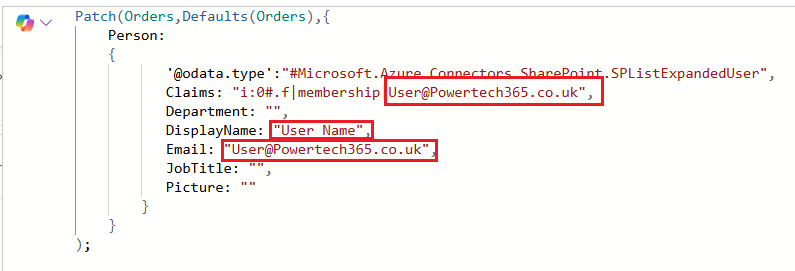
How about patching the current logged in user? For this we can use the ‘User()’ function:
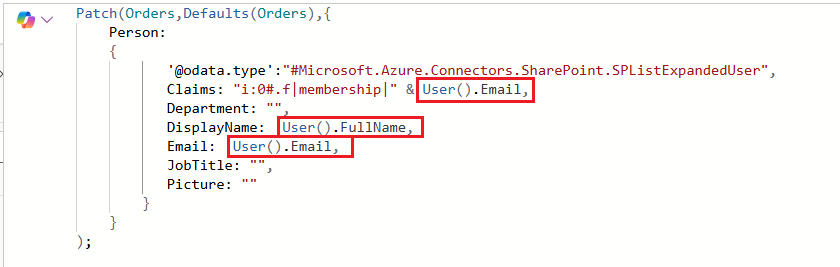
				
					Patch(Orders,Defaults(Orders),{
    Person:
    {
           '@odata.type':"#Microsoft.Azure.Connectors.SharePoint.SPListExpandedUser",
           Claims: "i:0#.f|membership|" & User().Email,
           Department: "",
           DisplayName:  User().FullName,
           Email:  User().Email,
           JobTitle: "",
           Picture: ""
        }
    }
);


Like this post? Why not share it!

LinkedIn
WhatsApp
Facebook
Reddit
X
Email

View Our Other Articles

Get In Touch

Let’s talk. Send us a message, and we’ll help you explore the best Power Platform solution for your business

We can turn your mondain tasks into effective workflows, saving you and your business time and money